

Mapping Fields in HawkSearch for Preview & Autocomplete
Overview
Configuration for preview mapping and autocomplete mapping must still be performed within the HawkSearch workbench. Below are the recommended mappings for effective implementation:
Preview
For more details about fields configuration, please refer to this article
Fields
Fields in HawkSearch can have different names within Optimizely. Below is a table of HawkSearch field names, and their corresponding name within Optimizely.
| HawkSearch Field Name | Optimizely Field Name |
|---|---|
| Title | Short Description |
| Image Url | LargeImagePath |
| Sku | Sku |
| Price | Price |
| Brand | Brand |
| Url | UrlPath |
How to add Fields for Preview Mapping
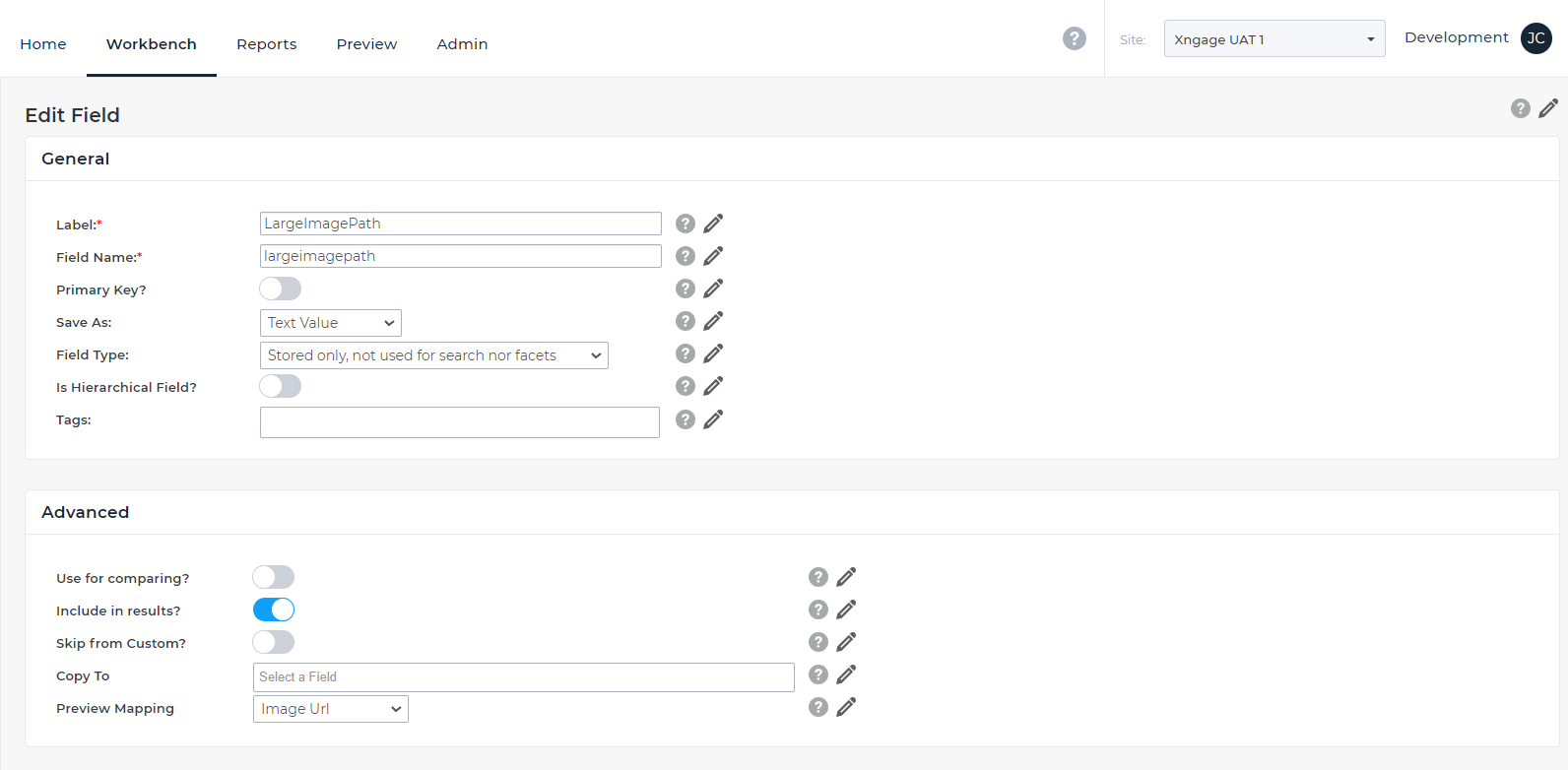
Workbench > Data Configuration > Fields > Add/Edit Fields (e.g. LargeImagePath) > Advanced > Preview Mapping > Select Image URL
Autocomplete
For more details about Autocomplete configuration, please refer to this article
Top Facets
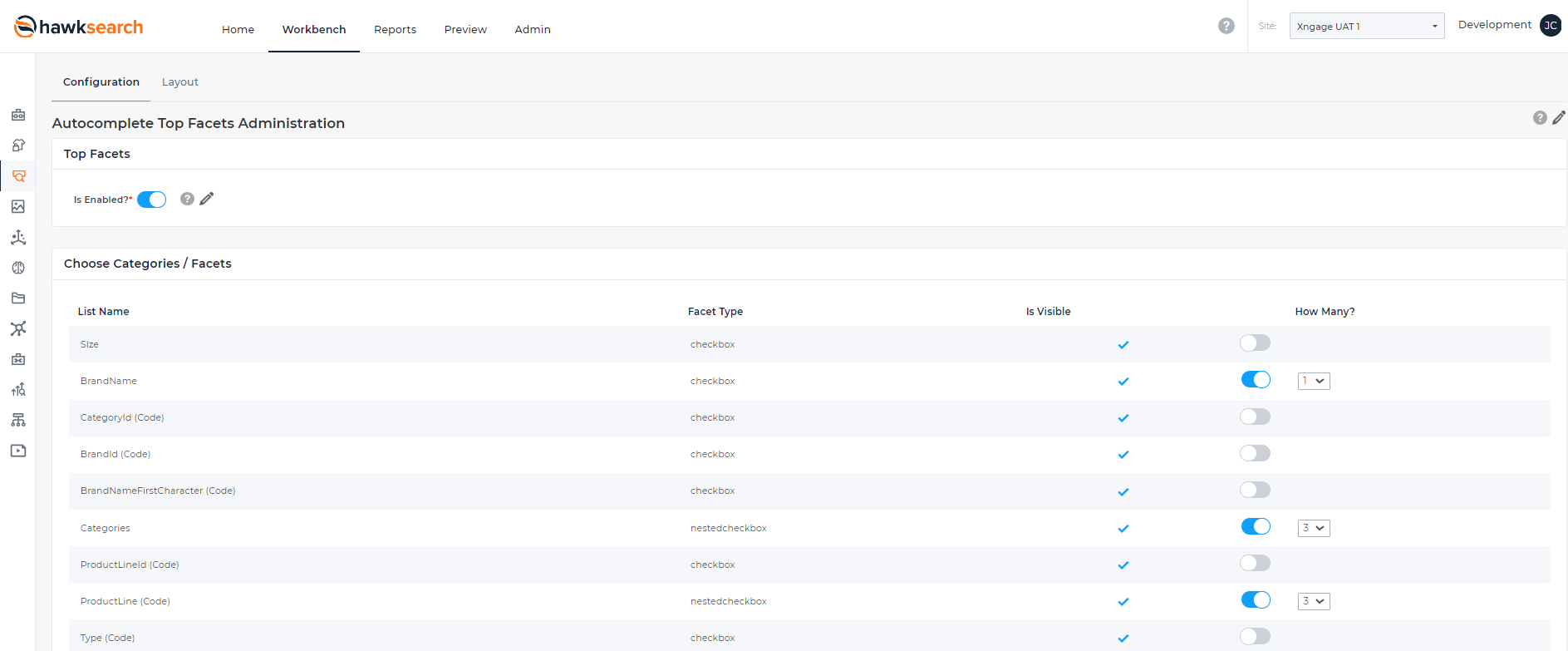
- Is Enabled? ON
- Choose Categories / Facets
- BrandName: 1
- Categories: 3
- ProductLine(Code): 3
Popular Searches
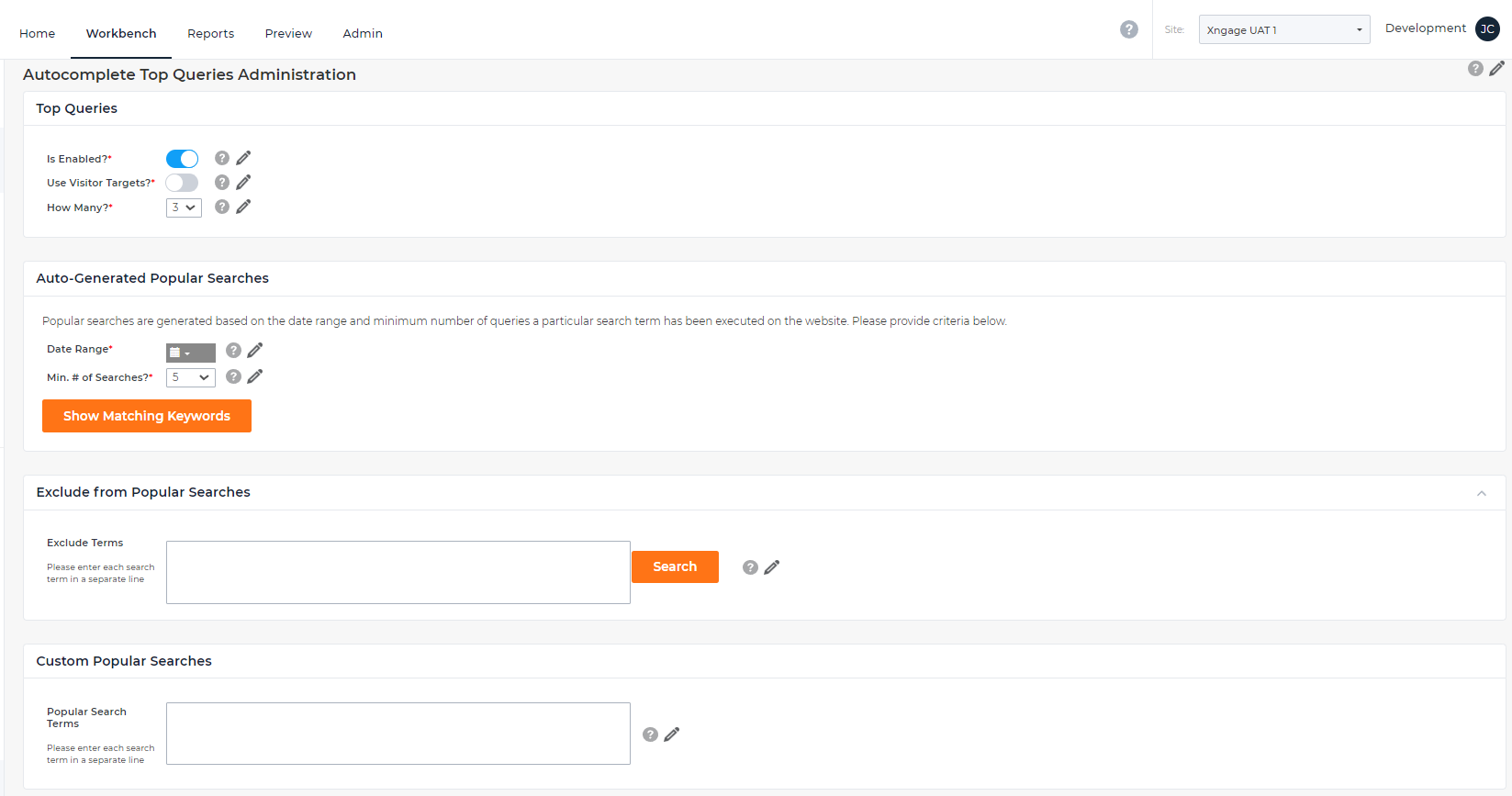
- Top Queries
- Is Enabled? ON
- Use Visitor Targets? OFF
- How Many? 3
- Auto-Generated Popular Searches
- Date Range: --All--
- Min. # of Searches? 5
Top Product Matches
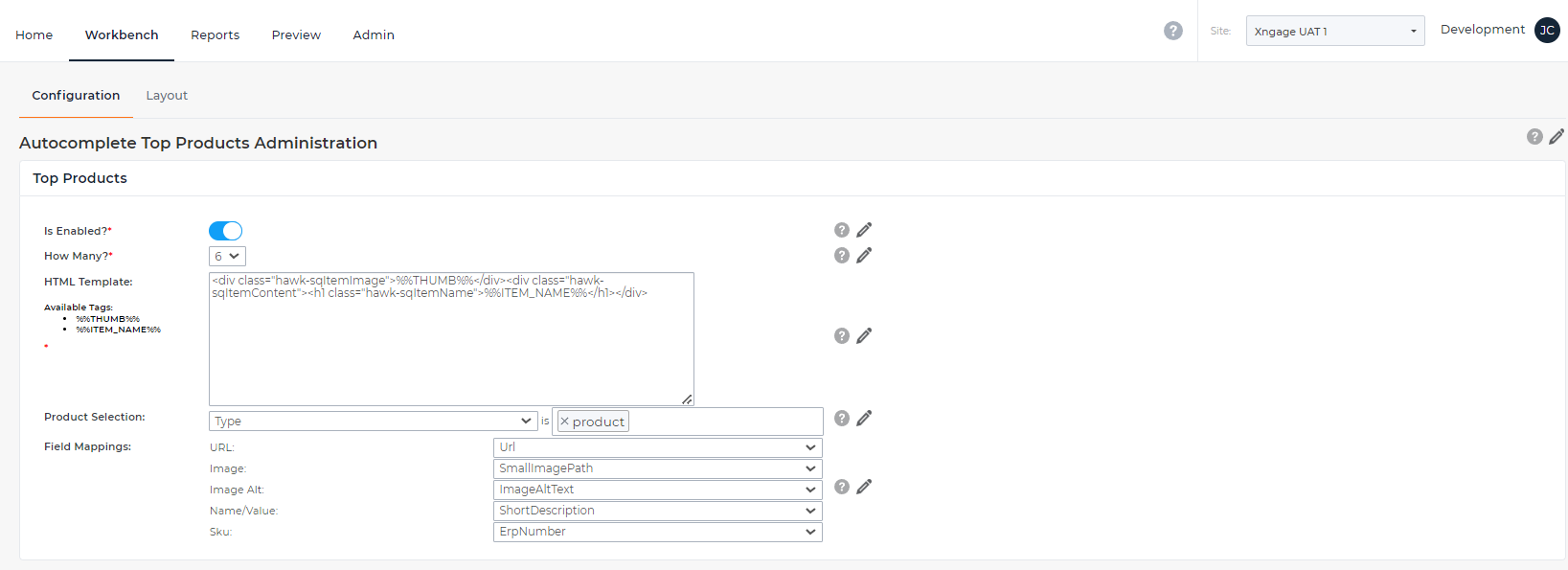
- Is Enabled? ON
- How Many? 6
- HTML Template:
<div class="hawk-sqItemImage">%%THUMB%%</div><div class="hawk-sqItemContent"><h1 class="hawk-sqItemName">%%ITEM_NAME%%</h1></div> - Product Selection: Type is product
- Field Mappings
- URL: Url
- Image: SmallImagePath
- Image Alt: ImageAltText
- Name/Value: ShortDescription
- Sku: ErpNumber
Top Content Matches
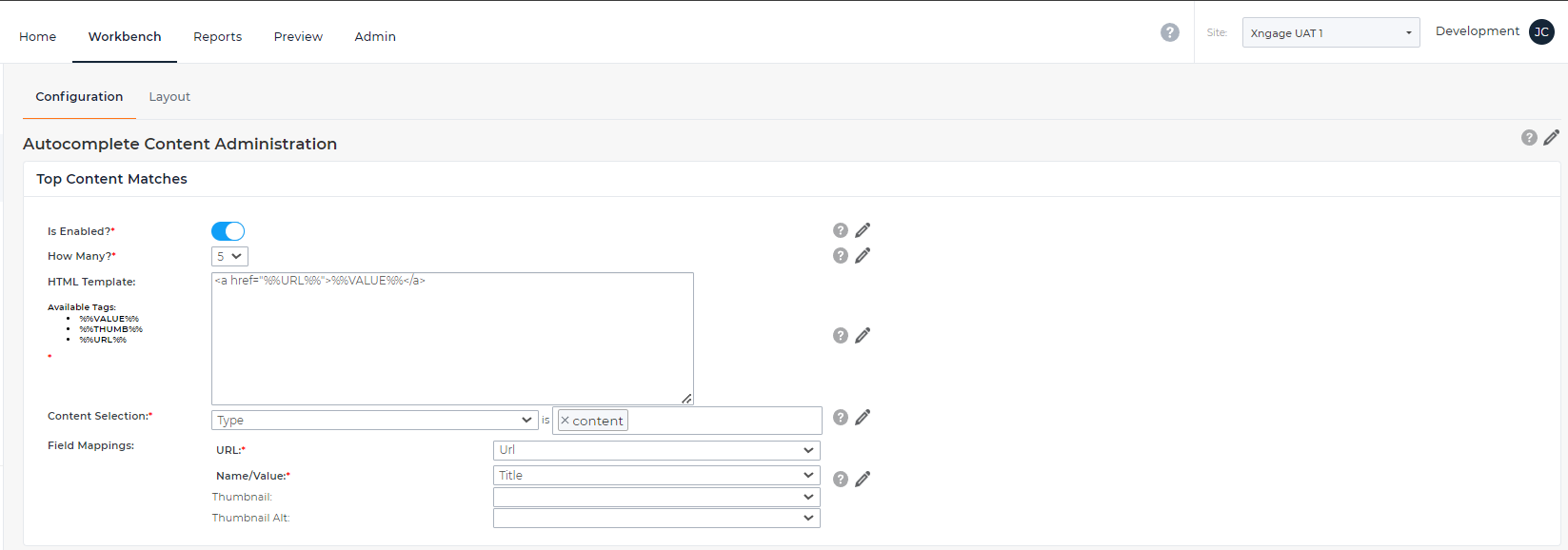
- Is Enabled? ON
- How Many? 5
- HTML Template:
<a href="%%URL%%">%%VALUE%%</a> - Content Selection: Type is content
- Field Mappings:
- URL: Url
- Name/Value: Title
Did You Mean? in Autocomplete
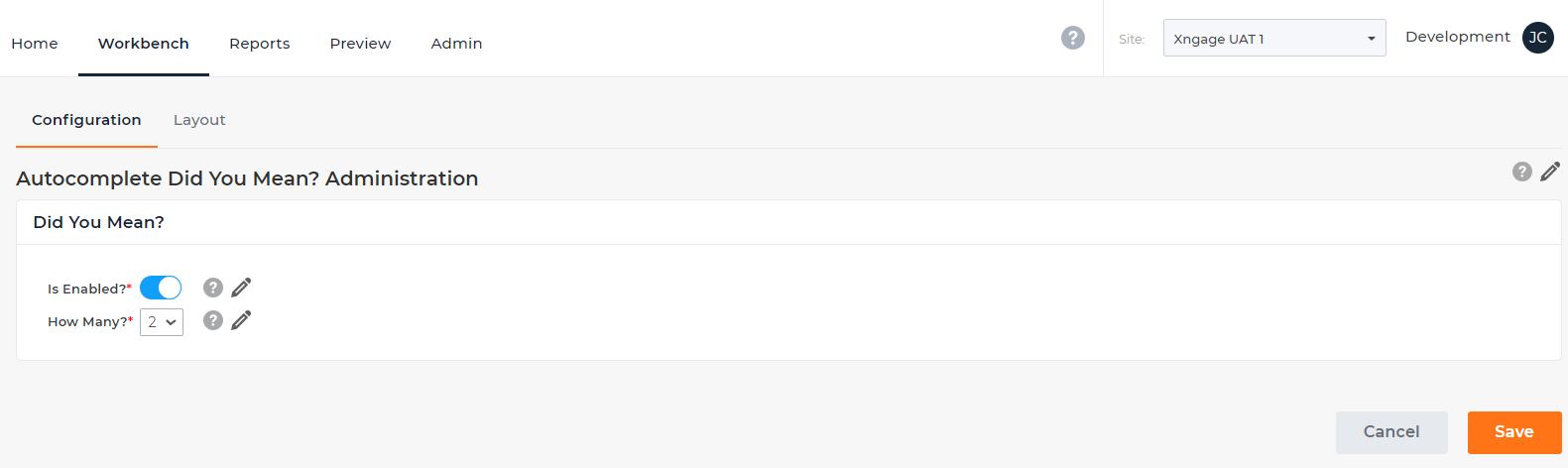
- Is Enabled? ON
- How Many? 2
Updated about 1 month ago
Did this page help you?