

For Blank Engines
Overview
At HawkSearch, being able to test our product under a variety of conditions is paramount in the development process. Luckily, QuickStart enables developers to create and customize their own HawkSearch sandboxes both quickly and easily. Here, you'll learn how to create your own blank engine from scratch and populate it with your own fields and facets.
Although there are many ways to work with HawkSearch, this sandbox setup will leverage Postman. Don't worry if you're unfamiliar with Postman-- our video guide will walk you through the process.
Create Your Engine
To get started with sandbox creation, please go to https://quickstart.hawksearch.com/.
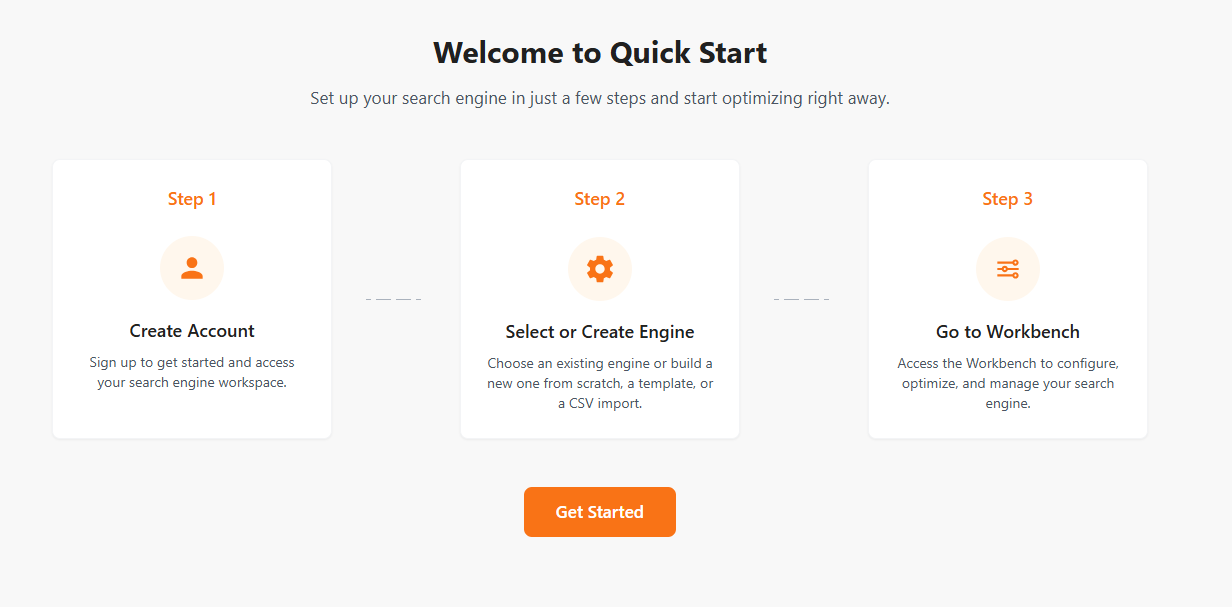
Upon loading, you should be greeted with the following screen. Select Get Started.
Create your account by inputting the required information.
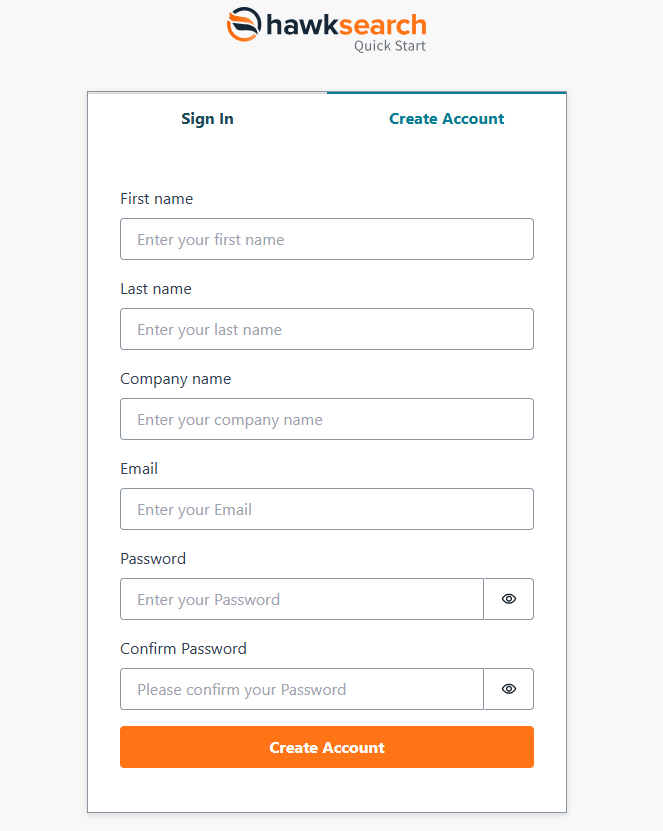
After clicking Create Account, you should now arrive at the Engine Configuration page. Here, you'll input the name for your sandbox, with your contact name already provided as the email used to log in.
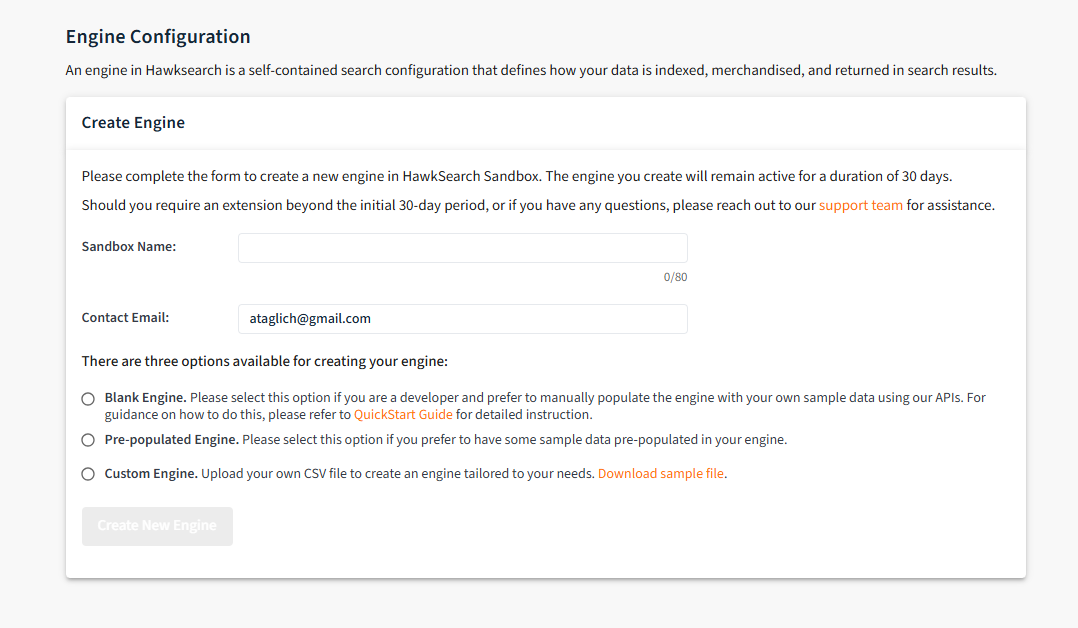
QuickStart's multiple engine options allow developers to create a sandbox with variable amounts of data already added. Since this is the guide for blank engines, we'll be selecting that.
Once the Create New Engine button has been clicked, details regarding your engine will be emailed to you shortly once set up is complete. Don't worry if this email isn't sent immediately-- the system is working to set up your engine during this time!
If you do not receive an email, there might be an engine already associated with that email. In that instance, please contact our support team for further steps.
What's Next?
Congratulations! You've now created your engine. For more information, the video guide below will teach you how to use Postman in order to efficiently add and edit a variety of fields, facets, and products. Alternatively, please check out the Sample Page, or browse the files underneath Play In Your Sandbox.
Video Guide
Step through the process with an expert in this helpful video which will guide you through the process of populating your blank engine.
Postman Collection
The postman collection can be found here:
Note: you may have to right click on the json or copy the text and save it with the .json extension. Then go into Postman and click on the “Import” button on the top left of the UX next to “My Workspace.”
Endpoint Descriptions
| Endpoint | Description |
|---|---|
| Bulk Field Creation | For creating your initial fields in your HawkSearch account. It will work with an import file with a number of fields for testing |
| Create Single Field | Creates a single field – could be helpful after the initial set up is complete. |
| Bulk Facet Creation | Facets create the filter options on the left hand side of your search results. Some sample facets are included in this sandbox process. There is an import file that is associated with this endpoint. |
| Create Single Facet | If you would like to add another facet, you can use this endpoint. Note that you would have to populate the index with a new column including this facet. |
| Create Index | For creating a new Index in HawkSearch |
| Bulk Product Creation | For creating the initial set up products in your index. It will work with an import file with roughly 3,000 products for testing |
| Create Single Product | Could be helpful for adding your own products for testing purposes after the initial sample products are loaded |
| Set Current Index | Sets an Index as the “current” or “live” index which will appear in the search results |
| Get Current Index | This will tell you what index is “live” |
| View Indexes | Shows list of indexes |
| Delete Index | Deletes an index – important since there will only be two indexes at a time so the old index will be deleted to create a new index. |
| Search | Basic example of a search - additional details are here: https://developerdocs.hawksearch.com/docs/search-api-examples |
Updated 4 months ago