

Connector Configuration
WordPress Connector Overview
The HawkSearch plugin is the integration layer between WordPress and HawkSearch. It sends your content to HawkSearch, configures fields and facets, keeps the index up to date, tracks visitor behaviour and replaces WordPress search with HawkSearch throughout the site.
The plugin works with posts, pages and custom content types on any WordPress site. When WooCommerce is active, products are added with their prices, stock, categories, brands and attributes, and sales tracking becomes available.
Connector Navigation
The plugin is organised into the following sections under HawkSearch in the admin menu:
| Section | What it is for |
|---|---|
| Home | Connection and indexing status at a glance. |
| Settings | Credentials, engine, environment, endpoints and the connection test. |
| Field Configuration | Which content and fields are sent to HawkSearch, and how they are searched. |
| Facets | The filters shown next to search results. |
| Indexing | Full reindex, schedule, real-time updates and history. |
| Search | The search results page and the site's search boxes. |
| Tracking | Event tracking for reports and recommendations. |
| Recommendation Widgets | Widgets from HawkSearch, the product page widget and a preview. |
| Developers | Where the code lives, customisation examples and a reference. |
The recommended order for a new site is: Settings → Field Configuration → Facets → Indexing → Search. Tracking is on by default.
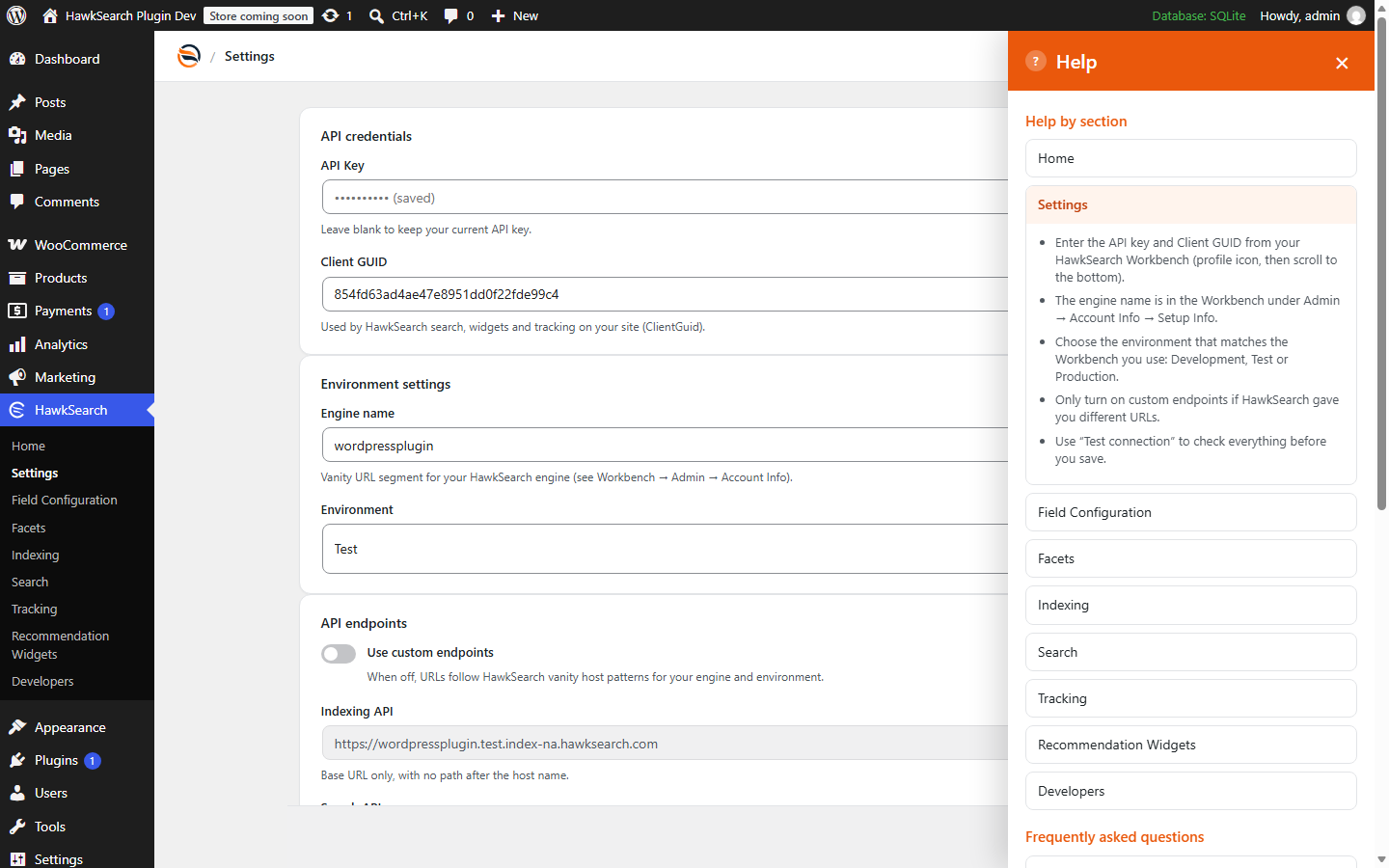
Help on every page
Every plugin page has an orange Help button in the bottom right corner. It opens tips for that page, FAQs and troubleshooting.
Connector Features
Home
The Home page is the landing page for the plugin. It gives a quick overview of the integration:
- HawkSearch connectivity: whether the API key and Client GUID are accepted (checked on each page load).
- Integration status: when the content was last indexed, the number of items in HawkSearch and in WordPress (by content type), and whether real-time updates are on.
- A link to the HawkSearch Dashboard.
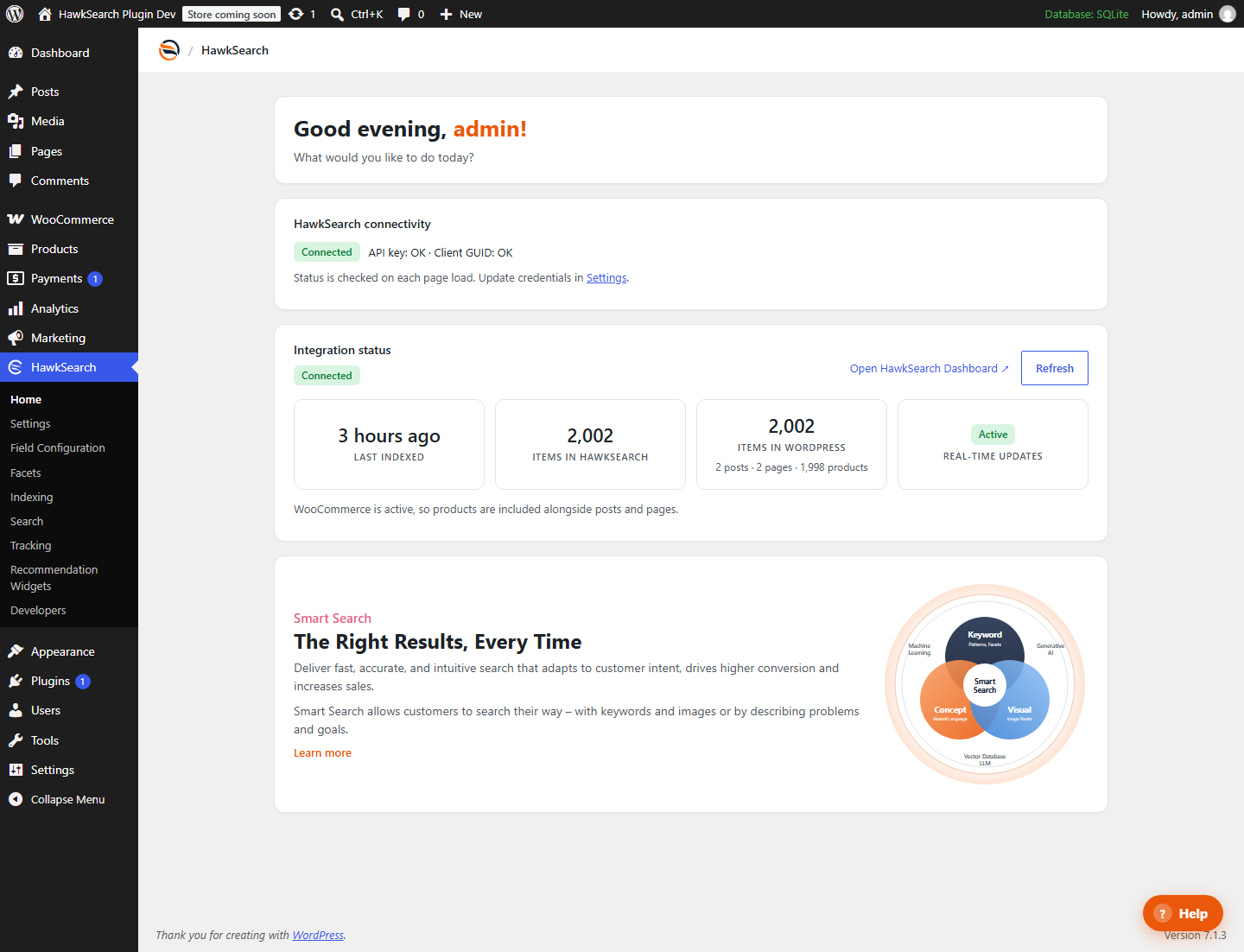
If the two item counts differ, run a reindex or check the content types on the Field Configuration page.
Settings
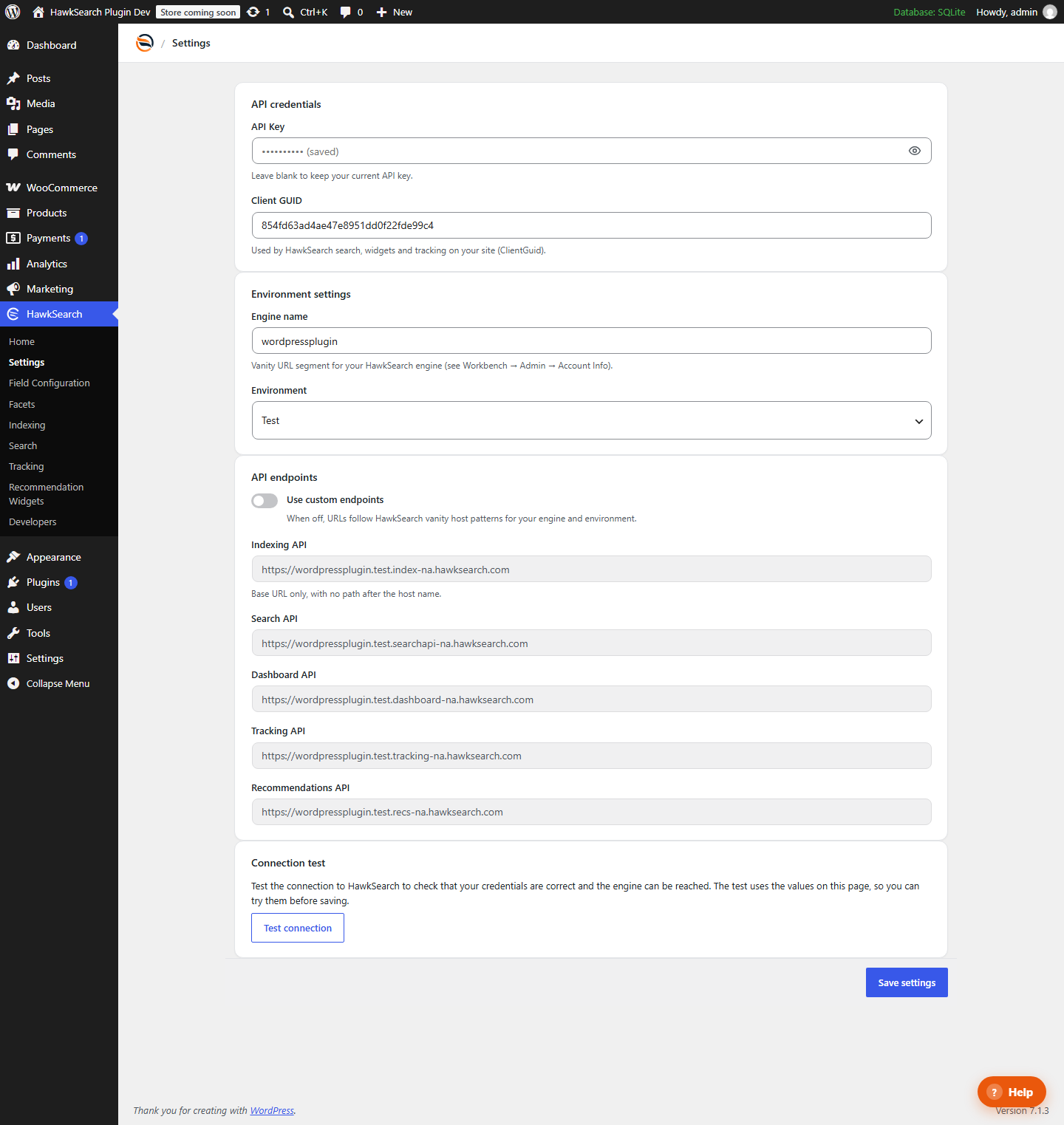
The Settings page establishes the connection between WordPress and HawkSearch.
API Credentials
Used to authenticate the plugin with HawkSearch. Enter the API Key and Client GUID of your HawkSearch engine.
- The API key is used only by the WordPress server (for fields, facets, indexing and recommendations lists). It is never sent to visitors' browsers.
- Once saved, the API key is shown as dots. Leave the field blank to keep the current key.
- The Client GUID is used by search, autocomplete, recommendations and tracking on your site.
Environment Settings
Defines the engine and environment that receive your content:
- Engine name: the engine's vanity URL segment.
- Environment: Development, Test or Production.
API Endpoints (Default)
With Use custom endpoints off, the plugin builds the standard vanity endpoints from the engine name and environment, for example https://<engine>.test.searchapi-na.hawksearch.com for Test. Production endpoints have no environment segment. The page shows the Indexing, Search, Dashboard, Tracking and Recommendations endpoints that will be used.
API Endpoints (Custom)
Switch on Use custom endpoints to enter customer-specific endpoint URLs supplied by HawkSearch. Enter base URLs only, with no path after the host name.
Connection Test
Sends test requests with the values on the page, before you save them:
- Client GUID: a one-result search on the Search API.
- API key: a request to the Indexing API.
When the connection succeeds, the plugin creates the standard fields that your engine doesn't have yet.
Testing Recommendation
After completing configuration, run the Connection Test to confirm connectivity before proceeding with field synchronization or indexing.
Field Configuration
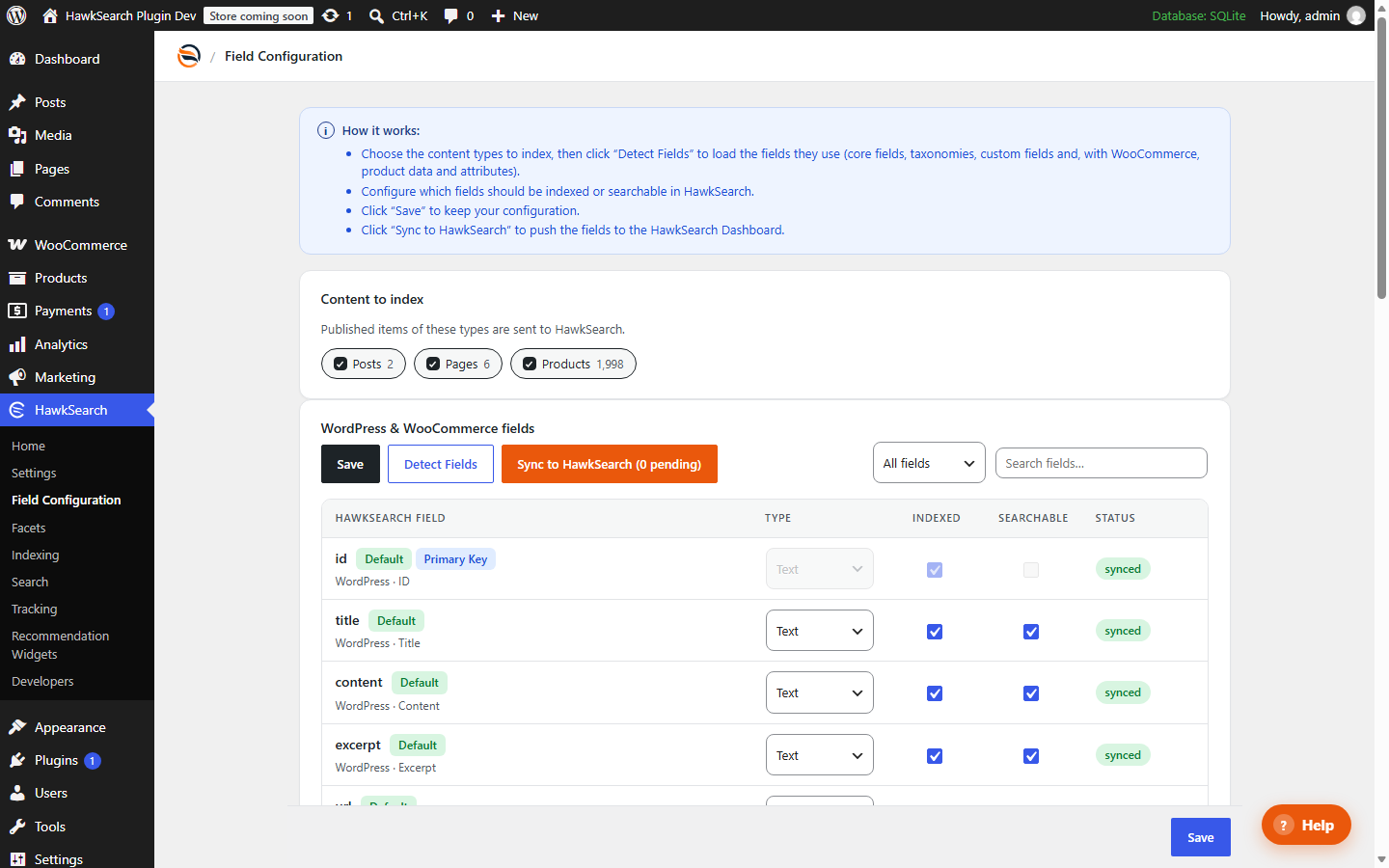
Field Configuration controls which content is sent to HawkSearch and how each field is used.
Content to Index
Choose the content types to index, for example Products, Posts and Pages. Custom post types appear here as well. Only published items are sent. WooCommerce's Cart, Checkout and My account pages, and the HawkSearch results page, are never indexed.
Fields
Click Detect Fields to scan the chosen content types. The plugin finds:
- Core fields: ID, title, content, excerpt, URL, featured image, date, author and more.
- WooCommerce product data: SKU, price, regular and sale price, on sale, stock status and quantity, rating, review count, total sales and weight.
- Taxonomies: categories, tags, brands and any custom taxonomies. Blog and product categories share one category field (tags likewise), so one facet works across content types.
- Product attributes: global attributes (Products → Attributes) and attributes typed on individual products.
- Custom fields (post meta) used by the content.
Two fields are always included for search results:
- type:
itemfor products andcontentfor everything else. Rapid UI showsitemresults as product cards with prices. - tab: the content type's name, for example "Products" or "Posts". It powers tabbed results (see Facets).
For each field you can set:
| Setting | Notes |
|---|---|
| Type | Text, Number or Yes/No. |
| Indexed | Whether the field is sent to HawkSearch, so it can be shown, sorted on or used as a facet. |
| Searchable | Whether visitors' searches match against the field. Only text fields can be searchable. |
| Status | Not indexed, pending (changed since the last sync), synced or error (hover for the reason). |
Detected standard fields are switched on. Other new fields are off until you turn them on.
Saving and Syncing
- Save keeps your choices in WordPress.
- Sync to HawkSearch saves and then creates or updates the fields in HawkSearch with recommended settings. Searchable fields get boosts: title 100, SKU 50, and content, categories and brand 25. Title, URL, image and price get preview mappings. You can fine-tune any field in the Workbench afterwards.
Fields you stop indexing are not deleted from HawkSearch.
After changing fields
Run a reindex after syncing so the new or changed fields are filled in.
Facets
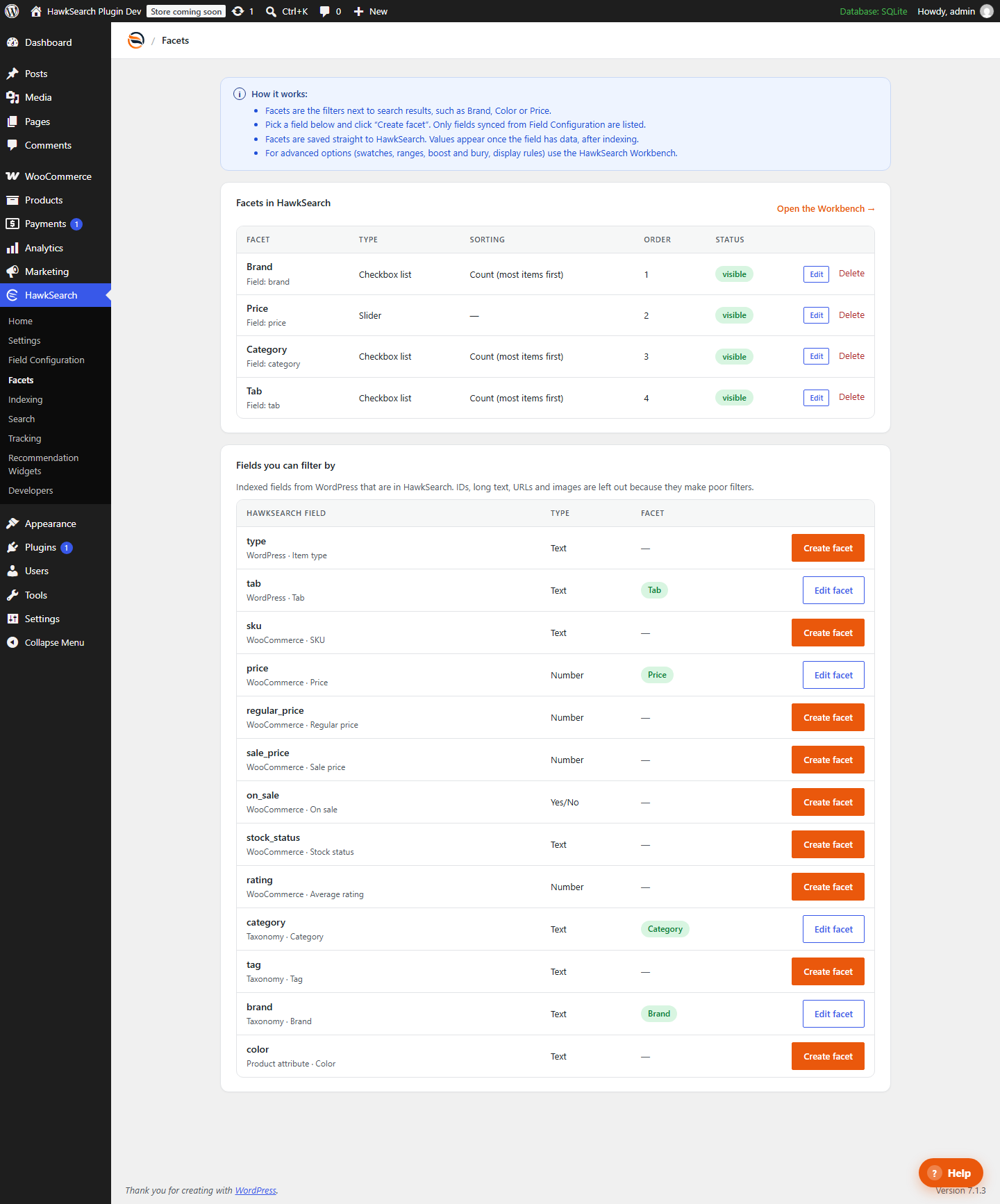
Facets are the filters next to search results, such as Brand, Category or Price. The Facets page lists the facets in HawkSearch and the synced fields that can have one.

Click Create facet next to a field, or Edit next to an existing facet, to open the editor:
| Setting | Notes |
|---|---|
| Display name | The heading shoppers see above the filter. |
| Facet type | Checkbox list (pick several values), Link list (pick one) or Slider (for numbers such as price). |
| Order | Lower numbers appear higher in the filter column. |
| Visible, Collapsible, Collapsed by default | How the facet appears. |
| Display type and Sorting | Default, scrolling or truncating lists; sort by count, A–Z, Z–A or custom. |
| Max number of filters, Min results per filter | Limits for long lists. |
| Search within the facet | Adds a search box to long lists, such as brands. |
| Expand selection | Keeps showing other values after one is picked. |
| Show item counts | Shows how many items match each value. |
| Show as currency | Sliders only, for prices. |
Facets are saved straight to HawkSearch. Values appear once the field has data, after indexing. Settings made in the HawkSearch Workbench, such as boost and bury, hidden values and display rules, are kept when a facet is edited in WordPress. For swatches, ranges and other advanced options, use the Workbench.
Facet Caching
After creating or changing facets, a short delay may occur before updates become visible on the site because of caching.
Tabbed Results
When products and other content (posts, pages) are indexed together, Sync to HawkSearch creates a Tab facet automatically, so results are split into tabs such as Products | Posts. It is set up as HawkSearch recommends for tabbed search results:
- Facet Field Type: Tabs, on the
tabfield. - Default Item Type: Products.
- Display Empty Tabs and Expand Selection on.
The plugin never changes an existing Tab facet, so you can adjust it in the Workbench.
Indexing
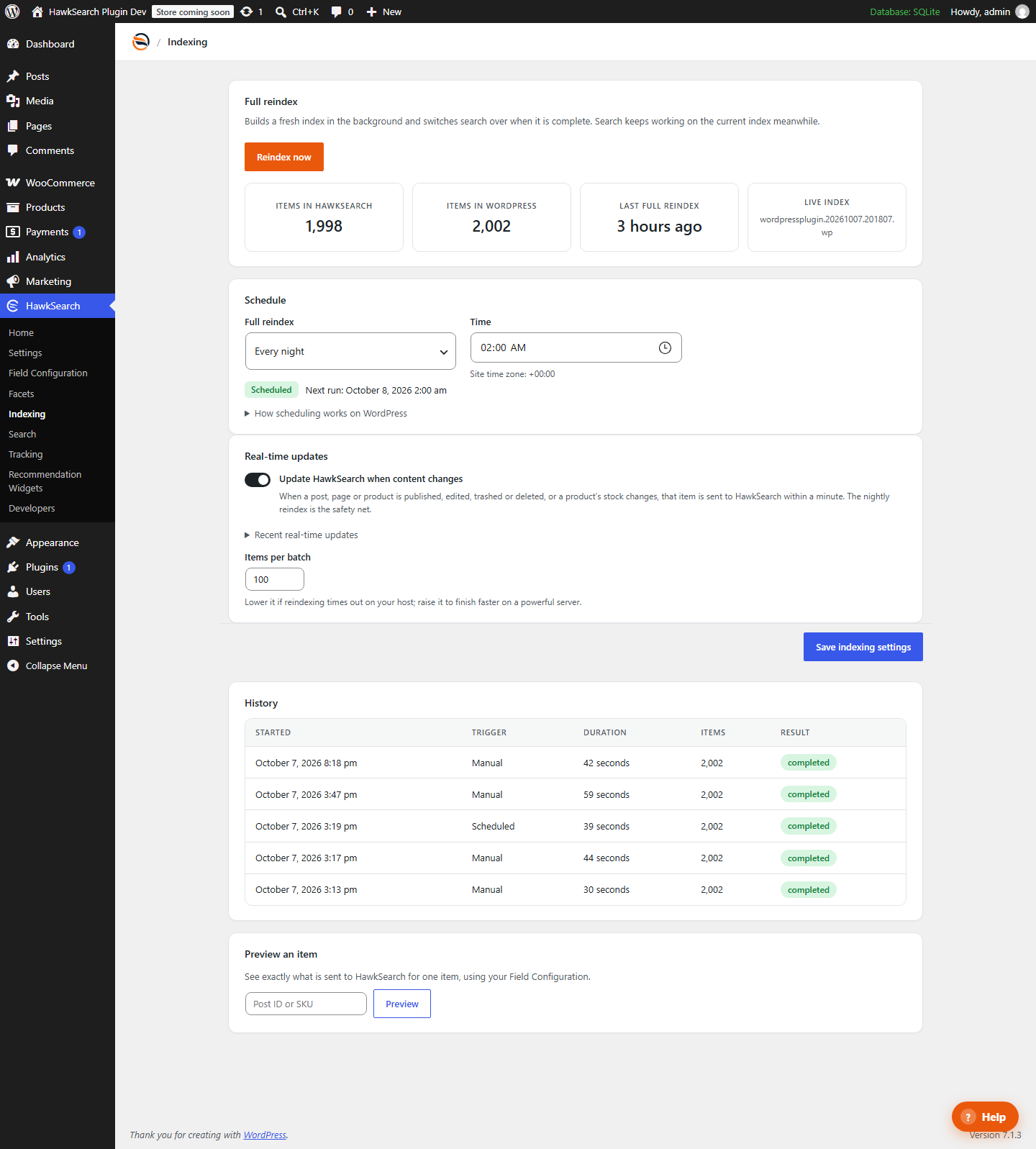
The Indexing page manages how content is sent to HawkSearch.
Indexing Impact
Full reindex operations do not interrupt search. HawkSearch builds a new index in the background and switches search over only when it is complete. If a reindex fails, search keeps using the previous index.
Full Reindex
Reindex now sends every indexable item to a new index in batches and shows its progress. You can leave the page while it runs. The tiles show the number of items in HawkSearch and in WordPress, the last full reindex and the live index name.
Before a reindex, fields with pending changes are synced automatically. HawkSearch's item count can lag about a minute behind after a reindex.
Schedule
Most sites reindex every night. Choose:
- Full reindex: every night, once a week, or off (manual only).
- Day: for weekly reindexes.
- Time: in the site's time zone (Settings → General).
The schedule starts after the first full reindex, or when you save these settings. The page shows the next run, and warns when a scheduled run is more than an hour late.
WP-Cron
WordPress runs scheduled tasks (WP-Cron) when someone visits the site, so on a quiet site a 2 a.m. reindex may start at the first visit after 2 a.m. For exact timing, ask your host to call
wp-cron.phpfrom a real cron job every 5 minutes. When WooCommerce is active, reindex batches run on its Action Scheduler.
Real-time Updates
With Update HawkSearch when content changes on, the plugin sends an item to HawkSearch within about a minute when it is:
- published, edited, trashed or deleted;
- a product whose stock changes (WooCommerce).
This replaces the webhooks used by other platforms. A log of recent real-time updates is shown under the setting. The nightly reindex remains the safety net.
Items per Batch
The number of items sent per request (default 100). Lower it if reindexing times out on your host; raise it to finish faster on a powerful server.
History
A record of recent full reindexes: when they started, whether they were manual or scheduled, how long they took, how many items were indexed and whether they completed or failed (with HawkSearch's reason).
Preview an Item
Enter a post ID or SKU to see exactly what is sent to HawkSearch for one item, using your Field Configuration. The preview also says when an item is not indexed and why.
Search
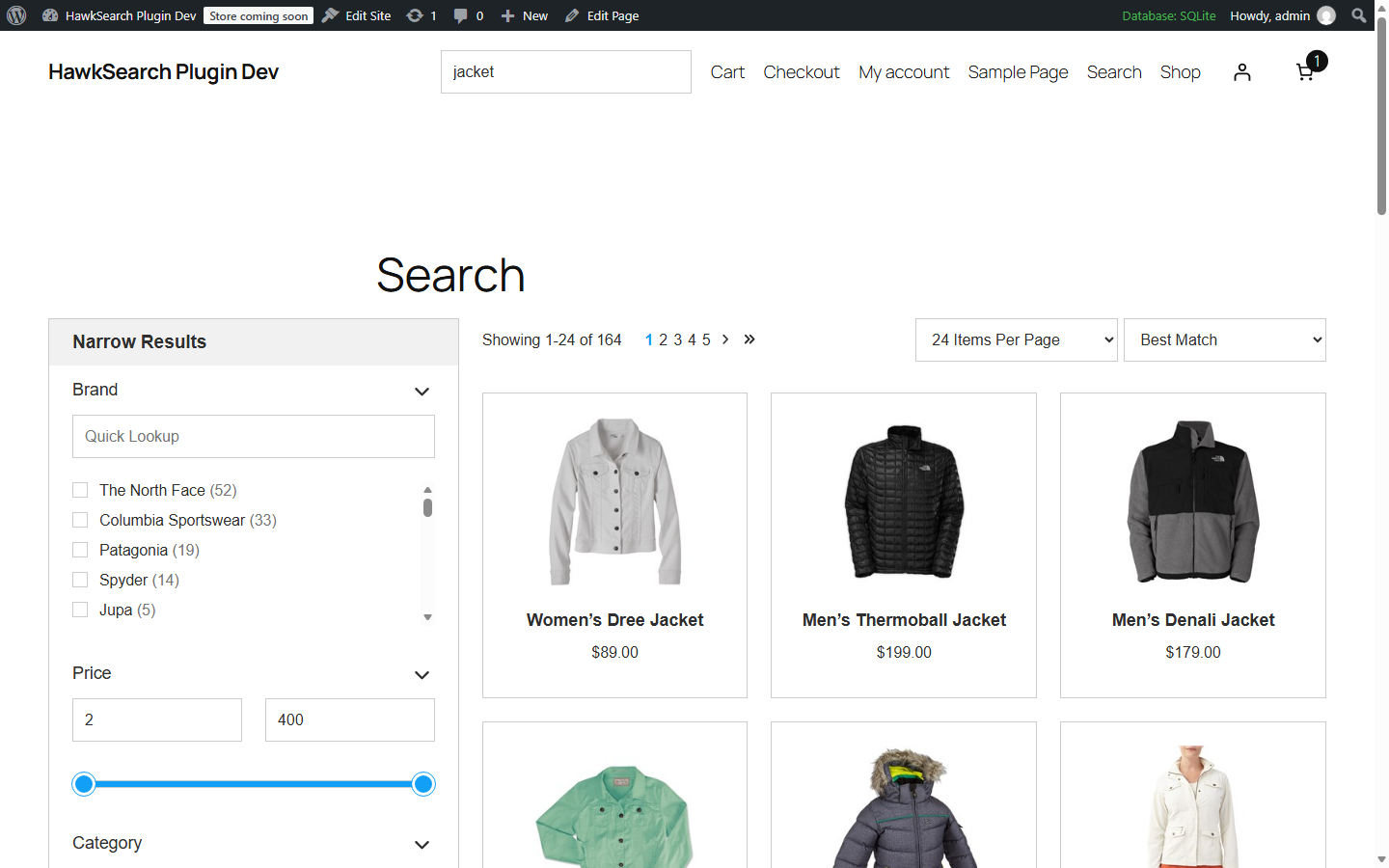
The Search page connects WordPress search to HawkSearch, using Rapid UI. See Front End Search for how it looks on the site.
Search Results Page
A WordPress page where HawkSearch shows results, facets, tabs, sorting and paging.
- Click Create the Search page to create a page at
/search/, or choose any page that contains the[hawksearch_results]shortcode. - The status line shows whether the page is ready, with links to view or edit it and to try a search.
- The page is labelled "HawkSearch results page" in Pages → All Pages.
Permalinks
Rapid UI recognises the results page by its address, so the site needs a permalink structure other than "Plain" (Settings → Permalinks). The page shows a warning if Plain is in use.
Site Search
Until Use HawkSearch for site search is on, only the results page uses HawkSearch, so you can try it before visitors see it.
| Setting | Notes |
|---|---|
| Use HawkSearch for site search | WordPress searches (?s=), including WooCommerce product searches, go to the results page. |
| Replace the theme's search boxes | Search blocks, the classic search form and the WooCommerce product search become HawkSearch search boxes with autocomplete. |
| Show recommendations in autocomplete (Instant Engage) | Shows recommended products when a visitor clicks into an empty search box. Set up the Instant Engage widget in the Workbench first. |
| Search box placeholder | Text shown in empty search boxes. Leave blank for the Rapid UI default. |
Tracking
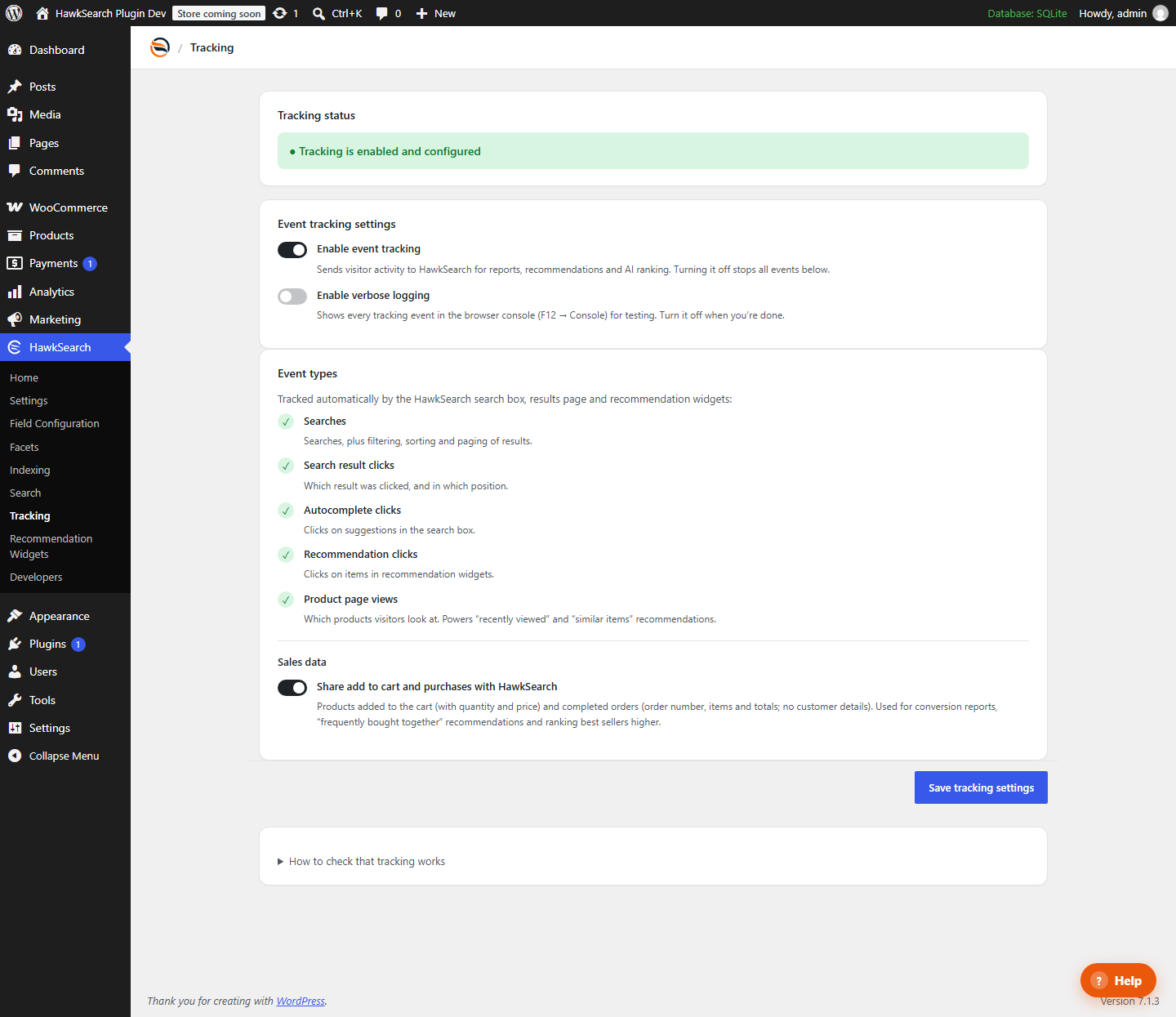
Tracking captures visitor interactions and sends them to HawkSearch. This data powers analytics, reporting, recommendations and AI ranking. More information about events can be found in the Event Tracking API documentation.
Tracking Status
Shows whether tracking is enabled and configured. Switch Enable event tracking off to stop all events; the status then reads "Tracking is turned off".
Enable verbose logging writes every tracking event to the browser console (F12 → Console), each line starting with [HawkSearch tracking]. Use it for testing and turn it off afterwards.
Event Types
| Event Name | Description | Sent by |
|---|---|---|
| Search | Searches, plus filtering, sorting and paging of results. | Rapid UI |
| Clicks | Clicks on search results. | Rapid UI |
| Autocomplete | Clicks on autocomplete suggestions. | Rapid UI |
| Recommendation clicks | Clicks on items in recommendation widgets. | Rapid UI |
| Product Views | Product page views. | Plugin (WooCommerce) |
| Add to Cart | Products added to the cart, with quantity and price. | Plugin (WooCommerce) |
| Purchases | Completed orders: order number, items and totals. No customer details. | Plugin (WooCommerce) |
Sales Data
Share add to cart and purchases with HawkSearch controls the Add to Cart and Purchases events, for stores that prefer not to share sales data. Search tracking keeps working when it is off.
- Add to cart events are captured however a product is added (product page, shop buttons or cart blocks) and sent on the visitor's next page view.
- A purchase is sent from the order confirmation page, once per order.
- The plugin only listens to WooCommerce events. It never changes carts, orders or checkout.
Search and click events
Search, click and autocomplete events come from the HawkSearch search box and results page, so they start once site search is switched on.
Recommendation Widgets
The Recommendation Widgets page shows HawkSearch recommendations on your site. Widgets and their strategies are created in the HawkSearch Workbench (Recommendations → Widgets).
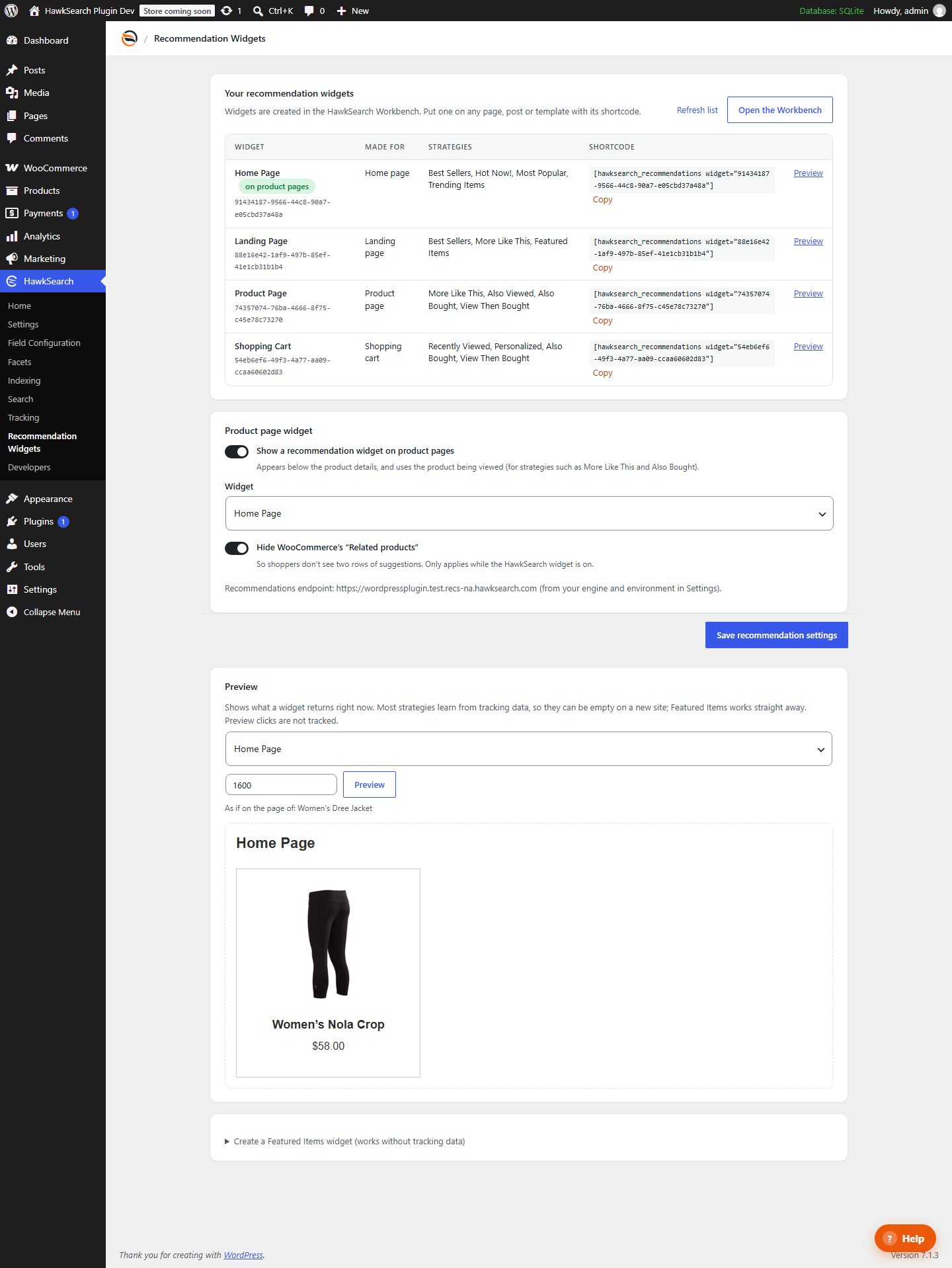
Your Recommendation Widgets
Lists the widgets in your engine with the page type they were made for, their strategies and their Widget GUID. Copy copies a widget's shortcode, for example:
[hawksearch_recommendations widget="91434187-9566-44c8-90a7-e05cbd37a48a"]
Paste it into a Shortcode block on any page, post or template. On a single product, post or page, the widget automatically receives that item's ID, so item-based strategies (More Like This, Also Bought) work. Click Refresh list after creating widgets in the Workbench.
Product Page Widget
With WooCommerce active:
- Show a recommendation widget on product pages places the chosen widget below the product details on every product page, using the product being viewed.
- Hide WooCommerce's "Related products" avoids showing two rows of suggestions while the HawkSearch widget is on.
The page also shows the Recommendations API endpoint in use.
Preview
Shows what a widget returns right now, as if on a chosen item's page. Preview clicks are not tracked.
Empty widgets on a new site
Most strategies (Also Bought, Also Viewed, Trending, Personalized) learn from tracking data, so they are empty until visitors have been searching, viewing and buying for a while. A Featured Items strategy shows products you choose and works straight away, which also makes it a good fallback strategy. The page explains how to create one in the Workbench; see also Setting Up Recommendations.
Developers
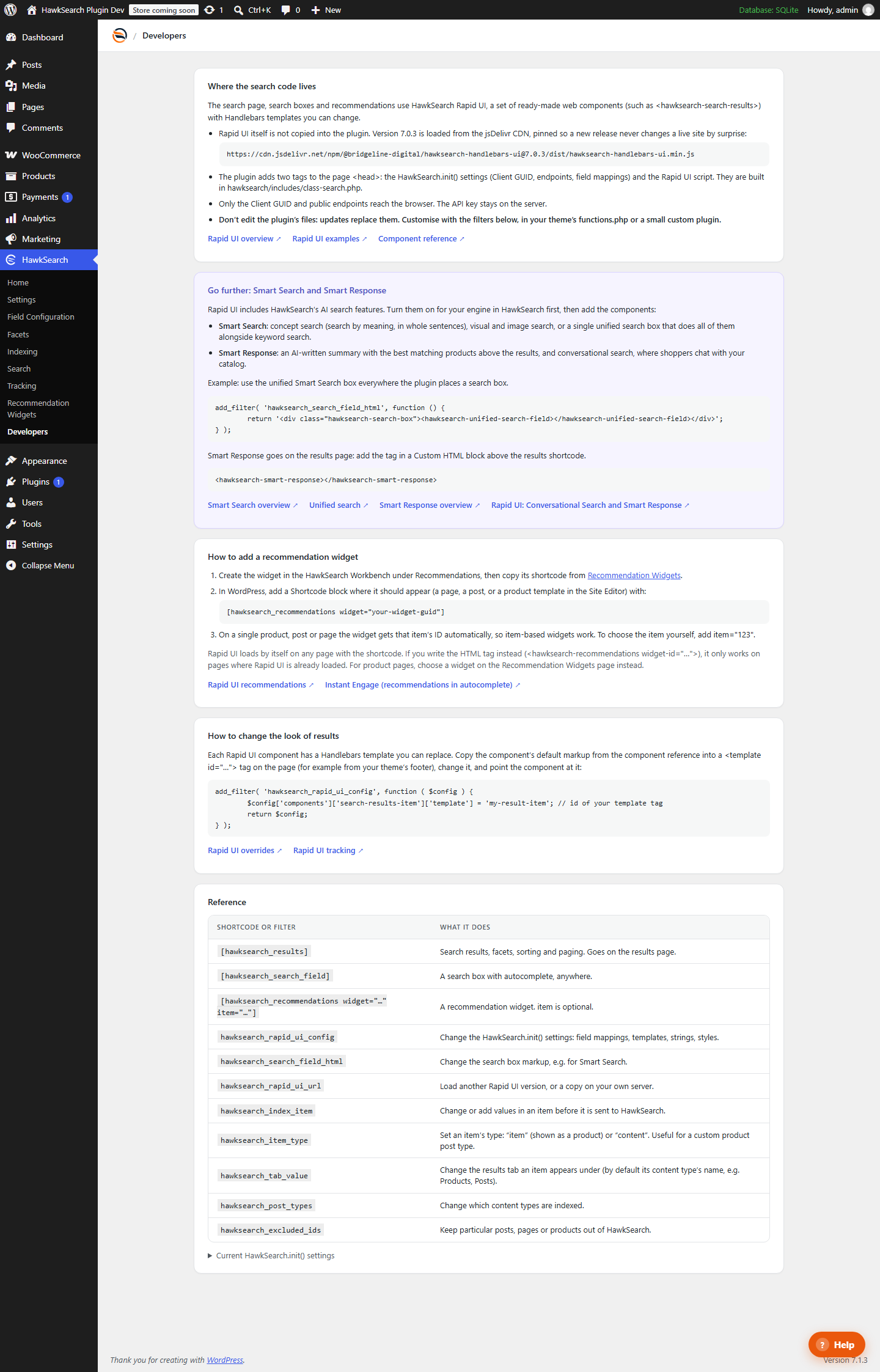
The Developers page explains where the search code lives, how to use Smart Search and Smart Response, how to add a recommendation widget and how to change the look of results, with a reference of shortcodes and filters. The same information is in the Developer Reference.
Updated 1 day ago