

Tabbed Search Results
Overview
It is often helpful to show search results organized by type of content, for example Products | Blog Articles | PDF files or by source such as Site 1 | Site 2 | Site 3. It is important that the search goes across all of the tabbed sections, but when the visitor clicks on a tab, that the facets on the left are relevant only to those pieces of content.
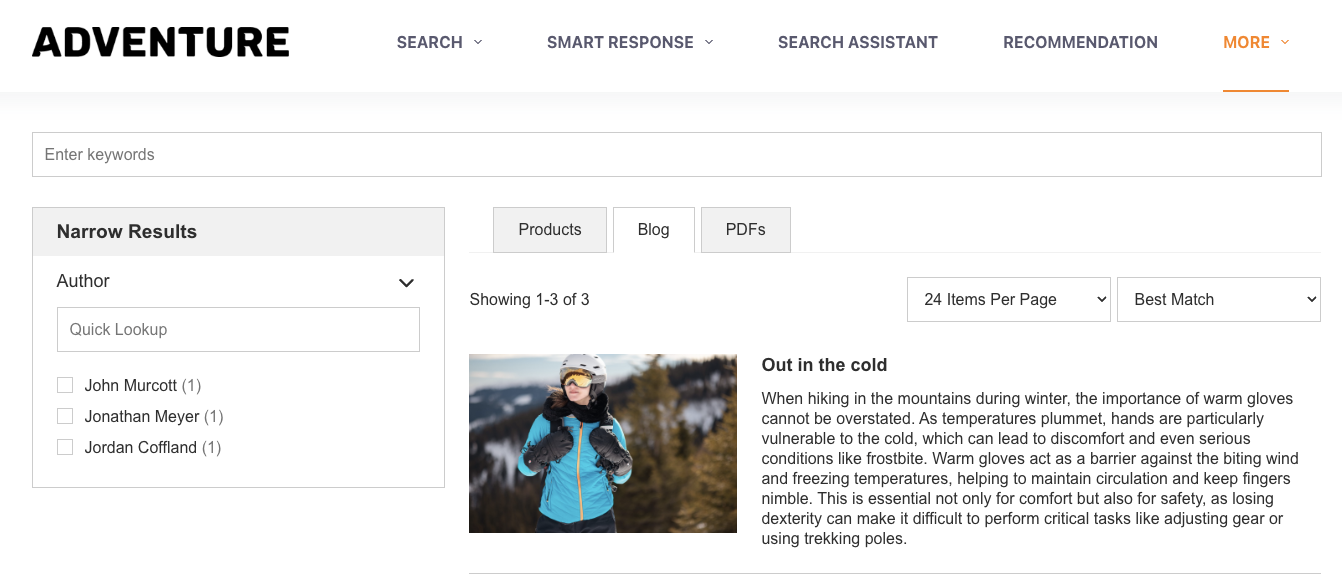
In order to accomplish this in HawkSearch you can take advantage of the facet of type "tab" and then pass in the tab value in your indexing API. This section will provide the instructions on how to add two additional tabs to the standard QuickStart data which by default only includes Products.
Add the Tab Field and Facet to your QuickStart Data File
Add a field to your index either through the API or going to the Workbench -> Data Configuration -> Fields. You can copy over the "type" field since it serves a similar purpose. To follow along with these instructions, name the field "tab."
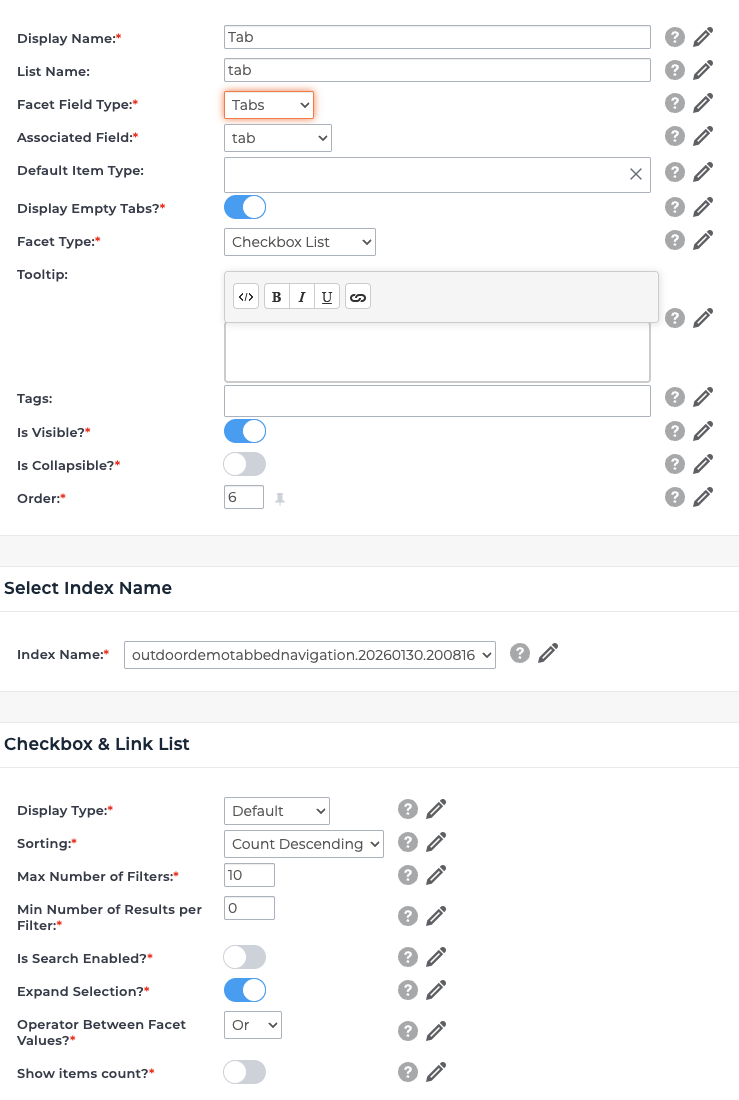
Once you have that set up, go to the Facets option and add a new facet and call it tab as well. You can use these settings, but the most important option is the facet type: Tabs. Note also the "Expand Selection" option needs to be turned on.
Create a new index
Now that you have added a field, you will need to create a new index so that the new field is taken into account. You can follow the instructions here from the original QuickStart.
Add new data to your indexing process
Now that you have a new field and new types of content to index you can either add some to your existing indexing file from the QuickStart process or you can use this provided CSV: https://hawksearch-sales.demos.hawksearch.com/sales/quickstart-sandbox/Tabbed_Results_Data.csv
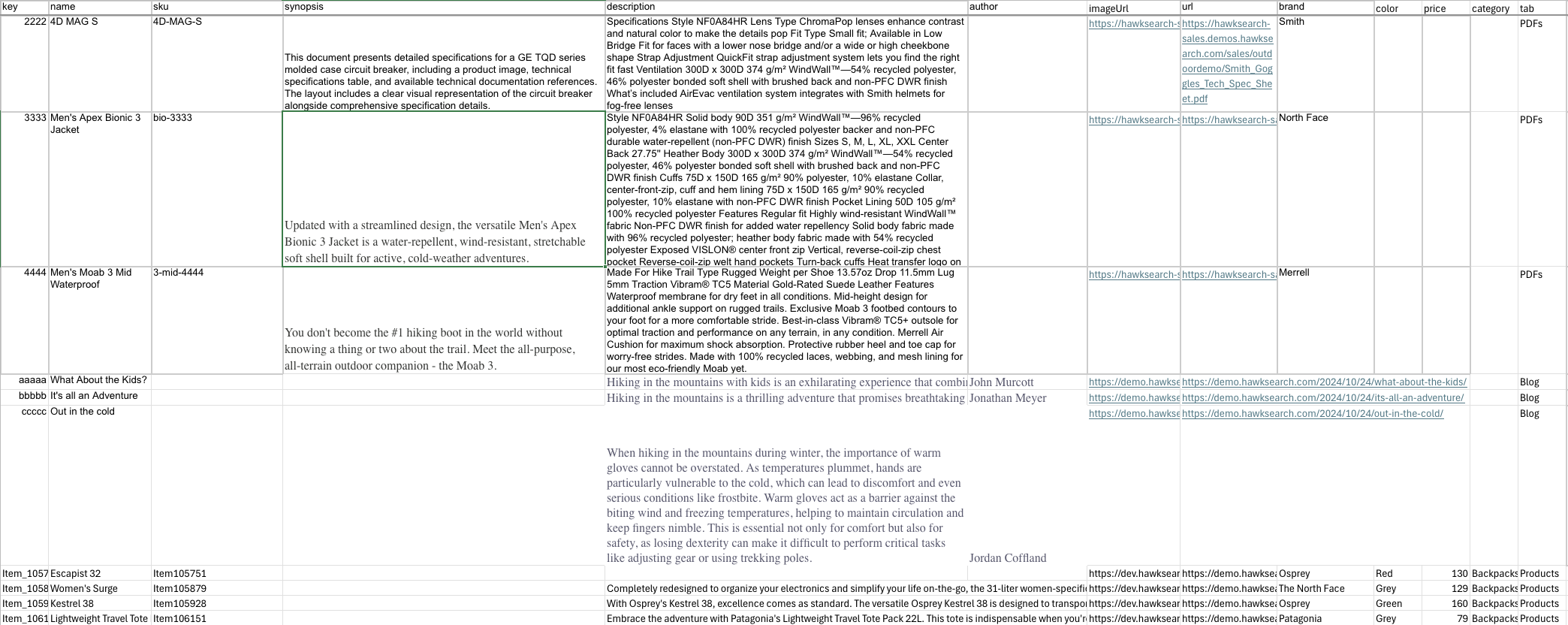
Since the data for these different content types are different than the product data some fields will be empty. The data file looks like this. Note the last column has tab values for PDFs, Blog and Products. That is what provides the value for the tabs in the search results.
Important Note
The tab field needs to be populated for every record for the tabs to function correctly.
Make sure you add these fields to your Indexing API call:
{
    "IndexName": "name.xxx.xxx",
"Items": [{
        "key": [
            "{{key}}"
        ],
        "name": [
            "{{name}}"
        ],
        "sku": [
            "{{sku}}"
        ],
        "synopsis": [
            "{{synopsis}}"
        ],
        "description": [
            "{{description}}"
        ],
        "author": [
            "{{author}}"
        ],
        "imageUrl": [
            "{{imageUrl}}"
        ],
        "url": [
            "{{url}}"
        ],
        "brand": [
            "{{brand}}"
        ],
        "color": [
            "{{color}}"
        ],
        "price": [
            {{price}}
        ],
        "category": [
            "{{category}}"
        ],
        "tab": [
            "{{tab}}"
        ],
        "type": [
            "{{type}}"
        ]
    }]
Define Starting/Default Tab
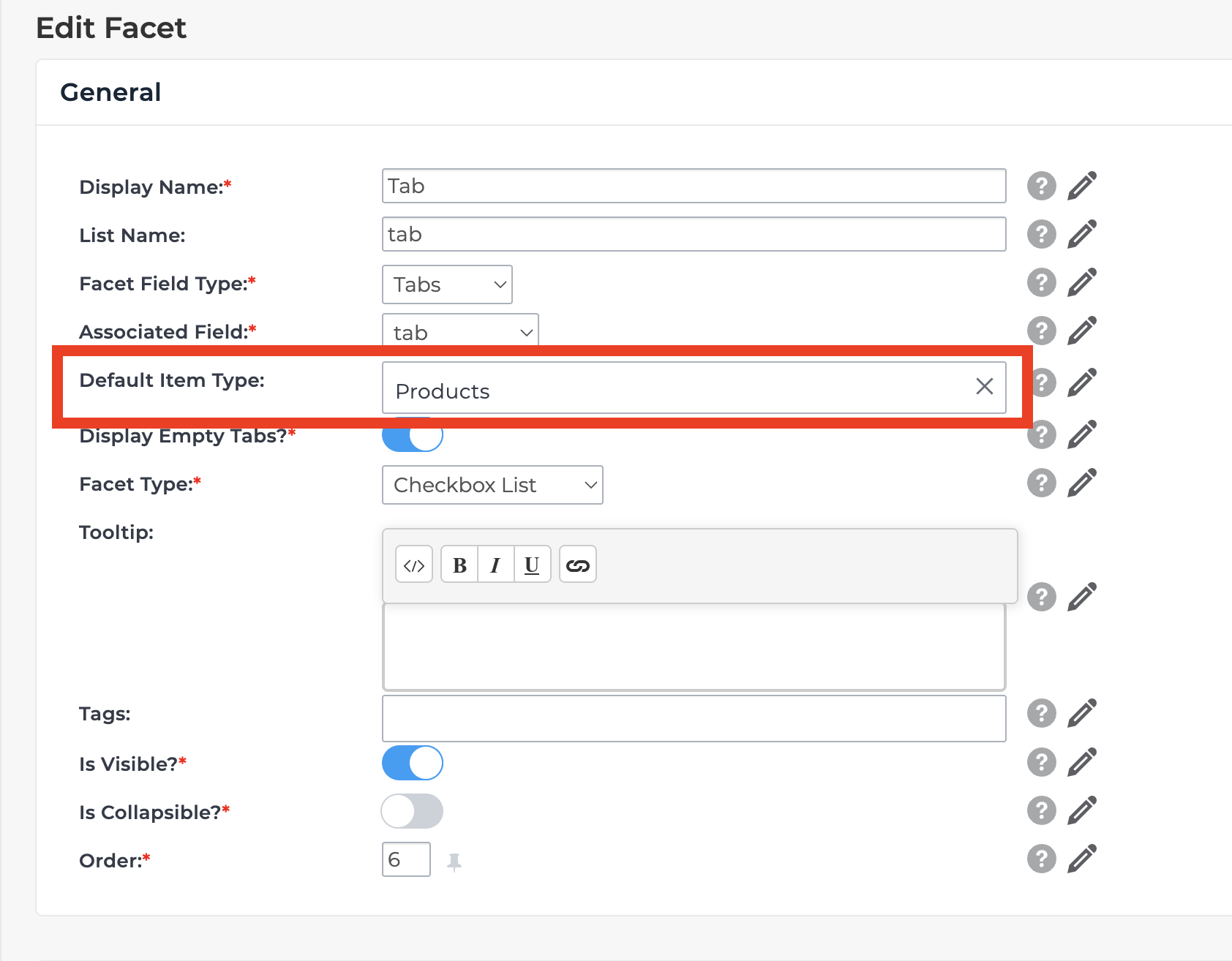
Once the data has been indexed in the step above, HawkSearch will now know what tabs are available to be used. With this data in place, you can define which tab should be the default one used when returning results. Return to the Facet Admin screen for the Tab facet as discussed in Step 1, and define the default tab. For our example, we will be using 'Products'.
Note
If you do not define which tab should be used as default, HawkSearch will instead blend all content types into the initial set of results until a Tab selection is made. In this way, the Tabs act as a filter against the results simialr to other facets. If this kind of blended approach is desired as the default, please let your account rep know and they can turn on a proper 'ALL' tab which will properly blend all results into their own dedicated tab.
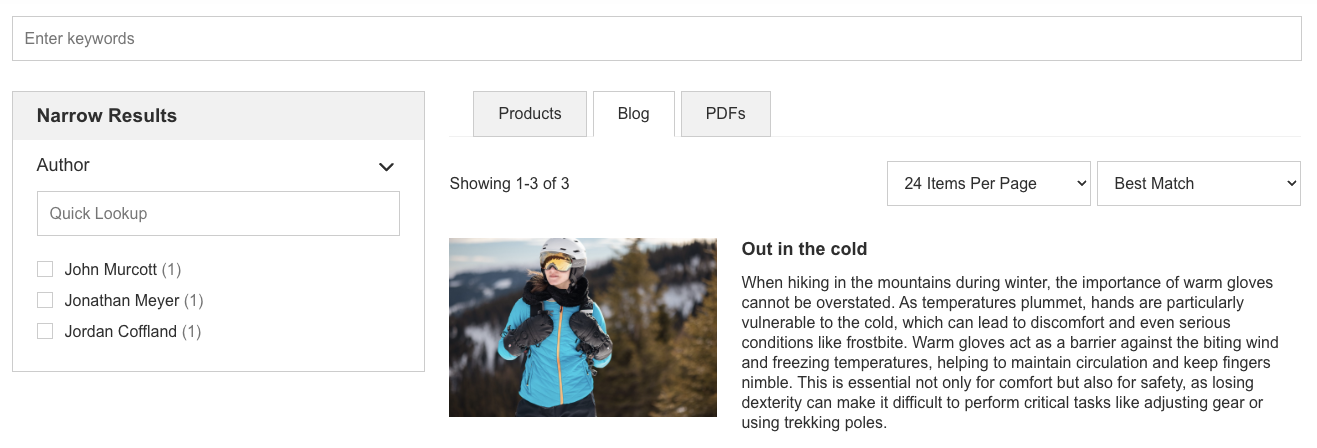
After indexing when you go to your Rapid UI page you will see results like this:
Updated 8 months ago