

Installing the Package
1. Obtain XConnect Hawksearch Loader (License + Code File)
Xngage will provide a single file which you will need to add to your Extensions project.
2. Install XConnect Hawksearch Loader to Extensions
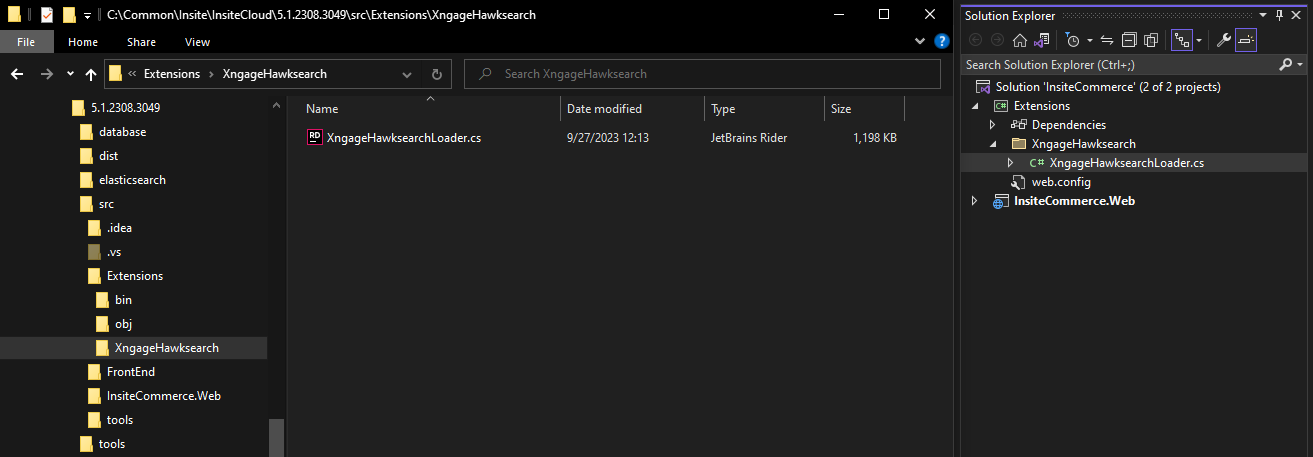
Create a new directory in the Extensions project named XngageHawksearch and place the provided XngageHawksearchLoader.cs into the newly created directory.
3. Build Project / Deploy to Sandbox
Once you add the XngageHawksearchLoader.cs, you can now build your Extensions.dll and/or deploy to your Optimizely Sandbox environment, as you do now with your Extension customizations.
4. Check XConnect Loaded
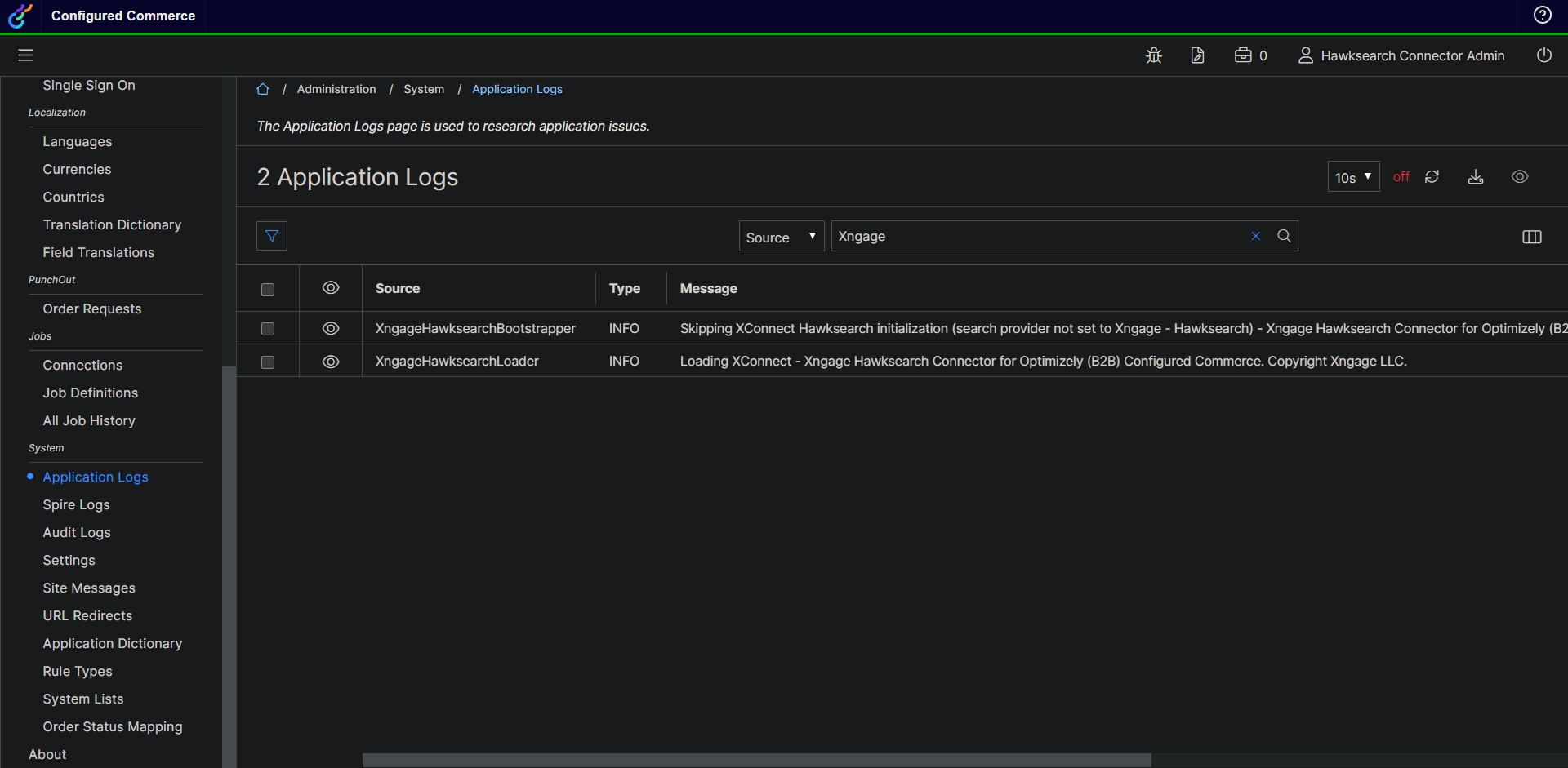
To check and ensure XConnect loaded properly, navigate to the Application Logs in the Optimizely Admin Console. Change the filter search bar to "Source" if not already, and search for "Xngage". You should see two messages:
XngageHawksearchBootstrapper INFO
Skipping XConnect Hawksearch initialization (search provider not set to Xngage - Hawksearch) - Xngage Hawksearch Connector for Optimizely (B2B) Configured Commerce. Copyright Xngage LLC

XngageHawksearchLoader INFO
Loading XConnect - Xngage Hawksearch Connector for Optimizely (B2B) Configured Commerce. Copyright Xngage LLC.
5. Change Search System Setting + Configure Hawksearch Settings
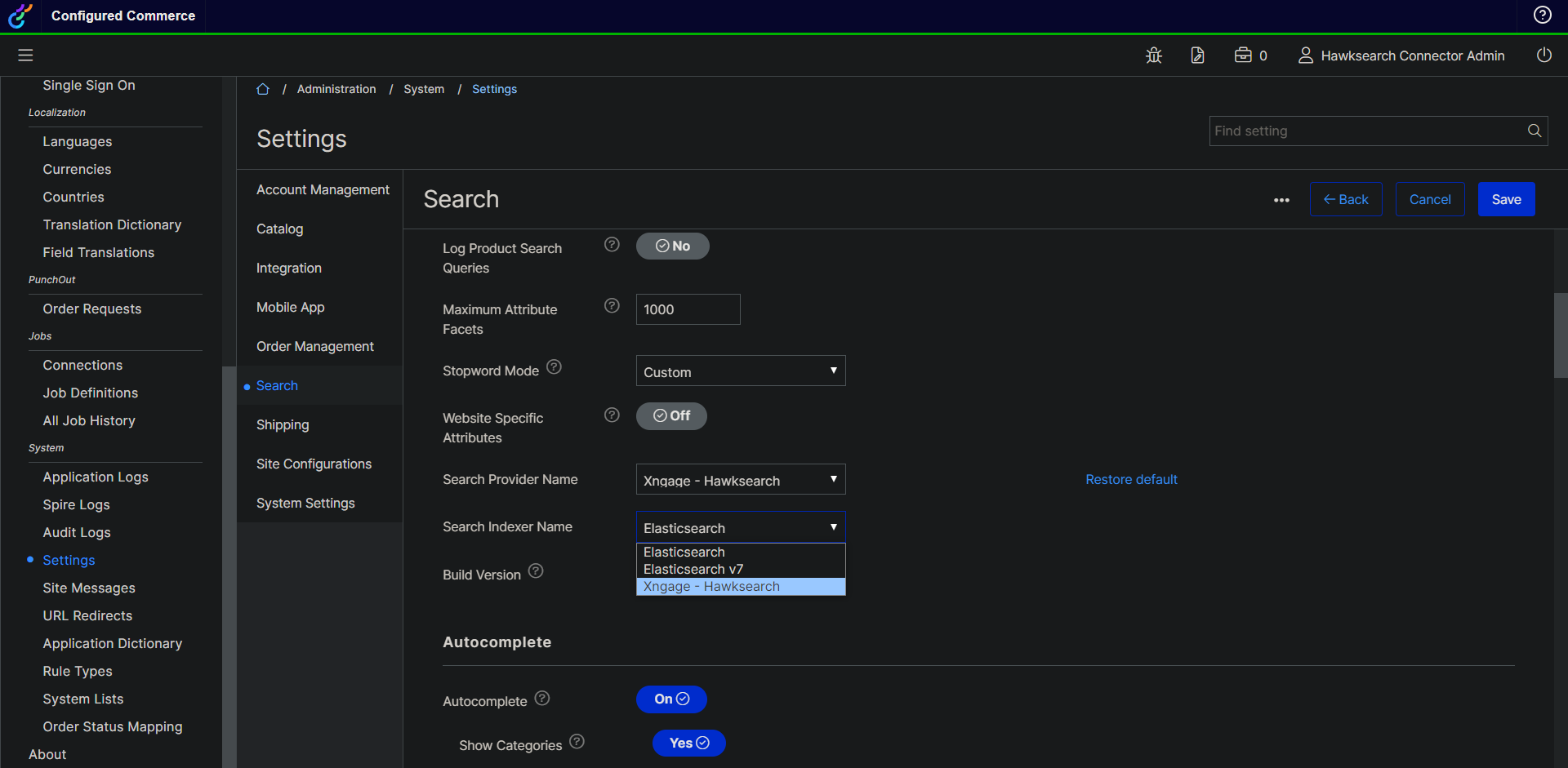
Once you verified the XConnect integration has loaded, you can now change the system settings. Go to the Search General settings and find the "Search Provider Name" and "Search Indexer Name" settings. Switch these to "Xngage - Hawksearch"
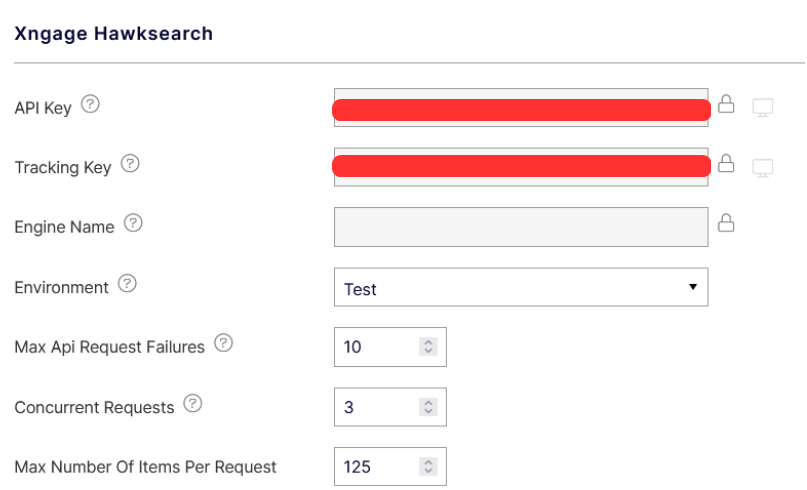
This will now show the "Xngage Hawksearch" specific settings further down in the settings list. Enter your API key and Tracking Key and Save the settings page.
Vanity URL Construction
Vanity URLs are constructed via the following formula:
https://{engine}.{environment}{baseUrl}.na.hawksearch.com
- Engine: Uses the value of the Engine Name setting. If blank, will instead use the
ClientNamevalue from the license. This field can only contain alphanumeric characters and dashes.- Environment: Uses no environment segment for Production,
testfor Test, anddevfor Dev.- Base URL: Uses the applicable API name, such as
searchfor the Search API orindexfor the Index API.
6. Restart Server / Redeploy To Restart
In order for the new Indexer changes to take effect, you need to restart the server. This will properly reload the XConnect integration when the server is rebooted.
7. Confirm Licenses Loaded
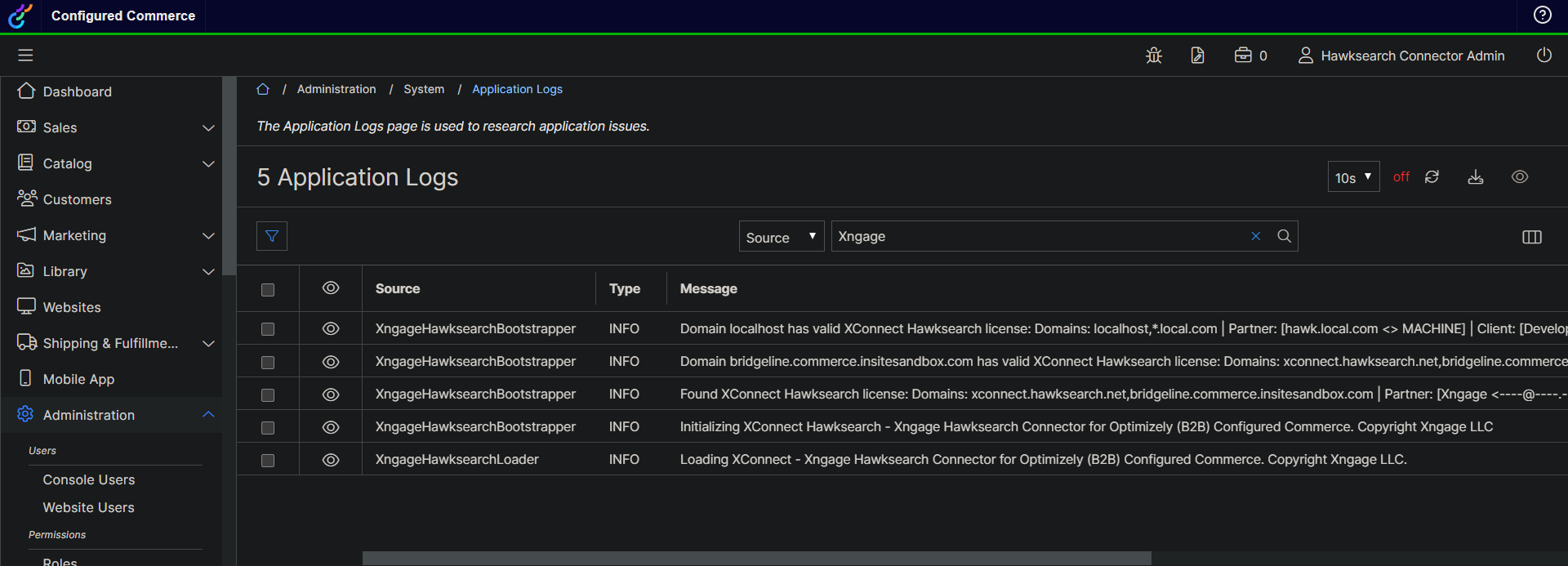
Once the server has rebooted, you should now have new log messages in the Application Log:
XngageHawksearchBootstrapper INFO
Domain localhost has valid XConnect Hawksearch license: Domains: localhost,*.local.com | Partner: [hawk.local.com <> MACHINE] | Client: [Development <> localhost] | Version: 0.2308.24.1512 | Exp: 12/31/9999 11:59:59 PM +00:00 | Gen: 9/27/2023 5:14:59 PM -04:00

XngageHawksearchBootstrapper INFO
Domain bridgeline.commerce.insitesandbox.com has valid XConnect Hawksearch license: Domains: xconnect.hawksearch.net,bridgeline.commerce.insitesandbox.com | Partner: [Xngage <[email protected]> https://xngage.com] | Client: [Hawksearch <[email protected]> https://bridgeline.com] | Version: 0.2308.31.0940 | Exp: 1/1/2024 12:00:00 AM +00:00 | Gen: 9/5/2023 11:34:10 AM -04:00

XngageHawksearchBootstrapper INFO
Found XConnect Hawksearch license: Domains: xconnect.hawksearch.net,bridgeline.commerce.insitesandbox.com | Partner: [Xngage <[email protected]> https://xngage.com] | Client: [Hawksearch <[email protected]> https://bridgeline.com] | Version: 0.2308.31.0940 | Exp: 1/1/2024 12:00:00 AM +00:00 | Gen: 9/5/2023 11:34:10 AM -04:00

XngageHawksearchBootstrapper INFO
Initializing XConnect Hawksearch - Xngage Hawksearch Connector for Optimizely (B2B) Configured Commerce. Copyright Xngage LLC

XngageHawksearchLoader INFO
Loading XConnect - Xngage Hawksearch Connector for Optimizely (B2B) Configured Commerce. Copyright Xngage LLC.
Updated 29 days ago