

Front End Search
Front End Search
The plugin replaces the default WordPress search with HawkSearch, using Rapid UI. It works with block themes (such as Twenty Twenty-Five) and classic themes, with no theme changes. Everything is set up on the HawkSearch → Search page; see Connector Configuration.
The changes include:
- Search results page, with facets, tabs, sorting and paging
- Search boxes with autocomplete
- Recommendation widgets
- Event tracking
Search Results Page
The results page is a normal WordPress page containing the [hawksearch_results] shortcode. Click Create the Search page to create one at /search/. You can add text or blocks around the shortcode and style the page like any other page.
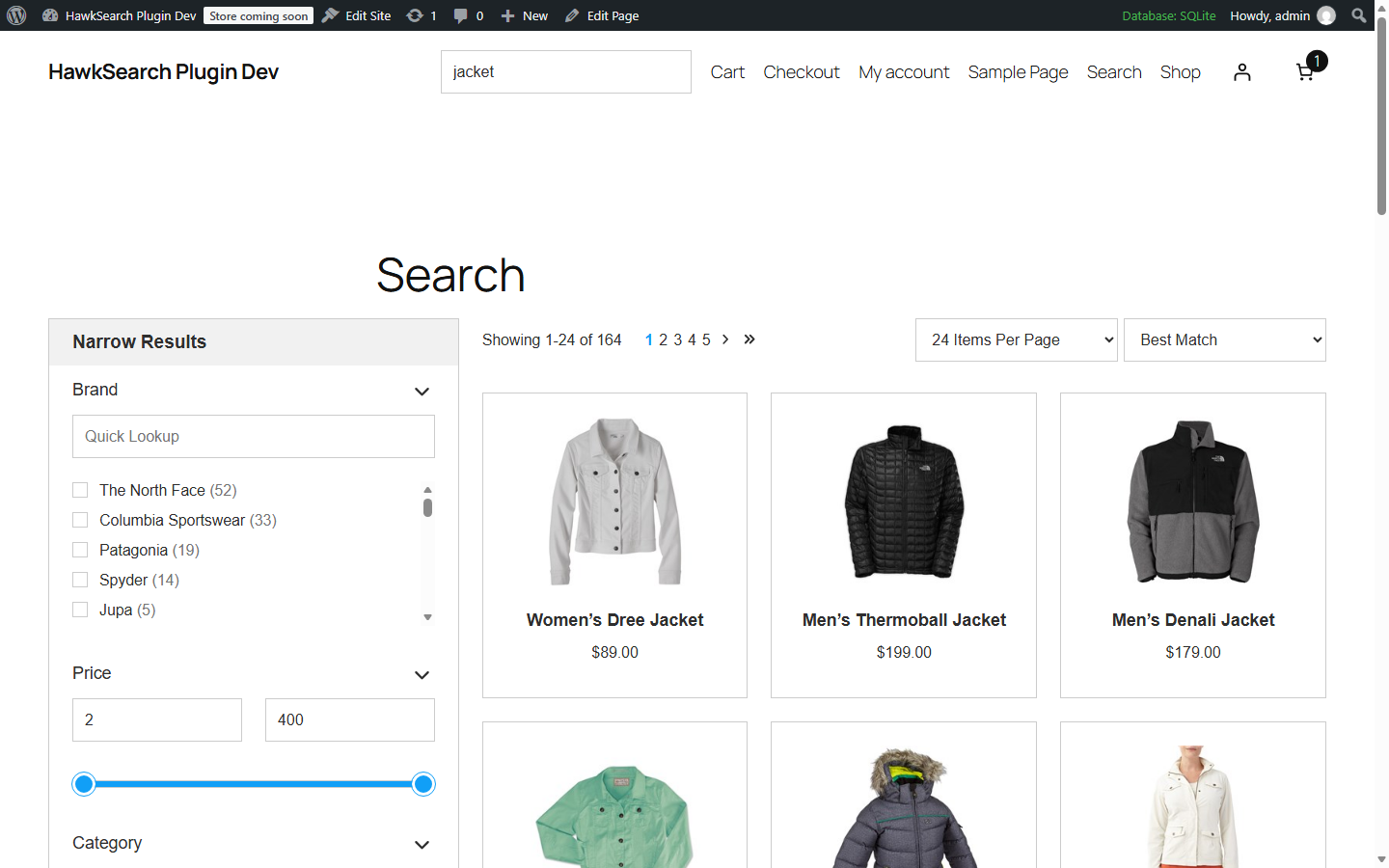
Results show:
- Products as cards with image, title and price (and the sale price when on sale).
- Content (posts, pages) as a title with an excerpt.
- Facets set up on the Facets page or in the Workbench.
- Sorting, items per page and paging.
- HawkSearch merchandising: boost and bury, pinned items, banners, redirects, "Did you mean" and keyword replacements.
Trying It Before Going Live
Until Use HawkSearch for site search is switched on, only the results page uses HawkSearch. Visitors keep the standard WordPress search, so you can try searches at /search/?query=jacket first.
When site search is switched on:
- WordPress searches (
/?s=jacket), including WooCommerce product searches, are sent to the results page. - With Replace the theme's search boxes on, the site's search boxes become HawkSearch search boxes.
Search Boxes and Autocomplete
With Replace the theme's search boxes on, these become HawkSearch search boxes with autocomplete:
- the Search block (block themes, widgets and templates);
- the classic search form (
get_search_form()); - the WooCommerce product search widget.
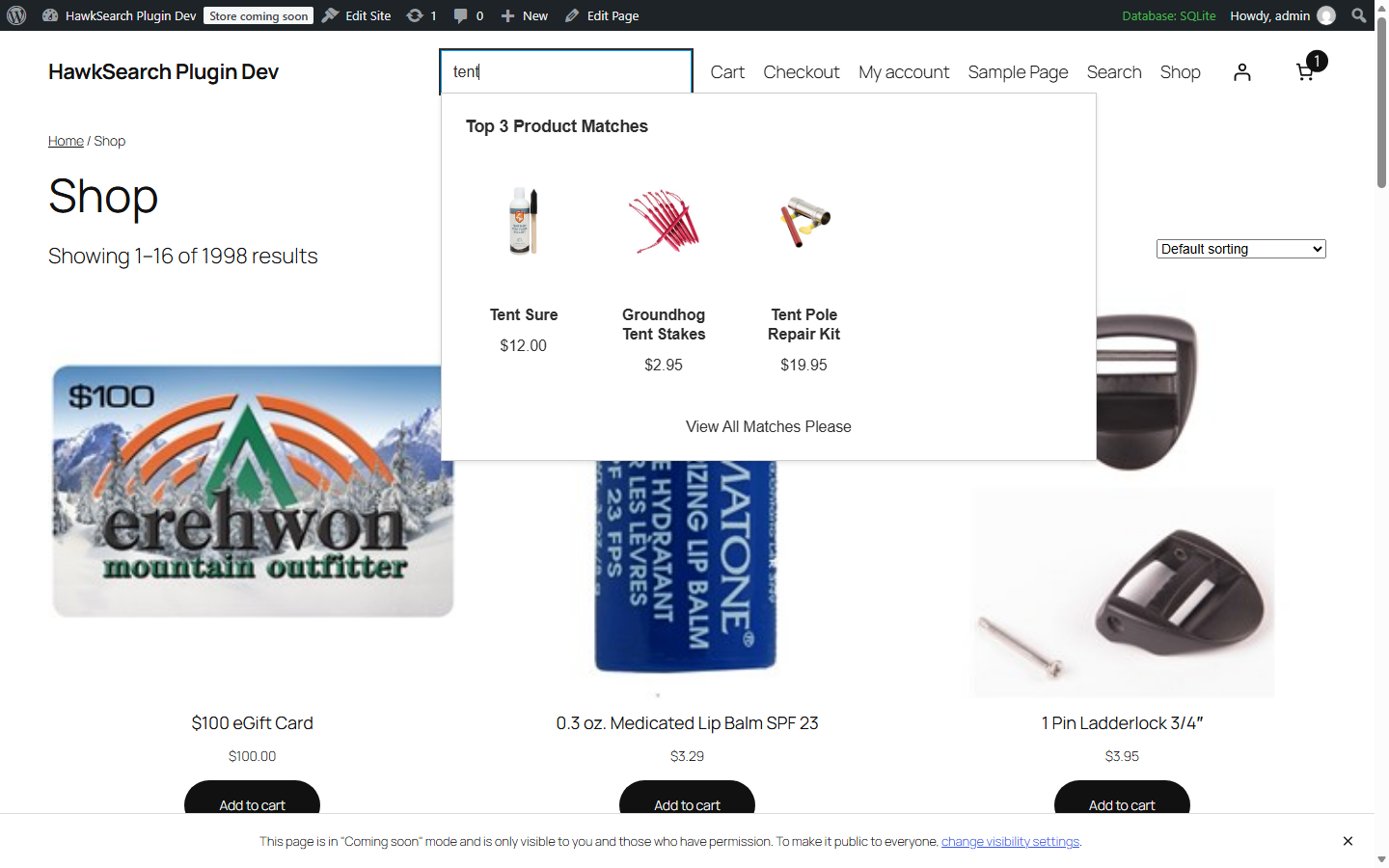
Autocomplete shows matching products, categories and popular searches, as configured in the Workbench. With Instant Engage on, it also shows recommended products when a visitor clicks into an empty search box.
To place a search box anywhere else, use the [hawksearch_search_field] shortcode.
Tabbed Results
When products and other content are indexed together, results are split into tabs, with Products shown first. Each tab has its own facets and counts.
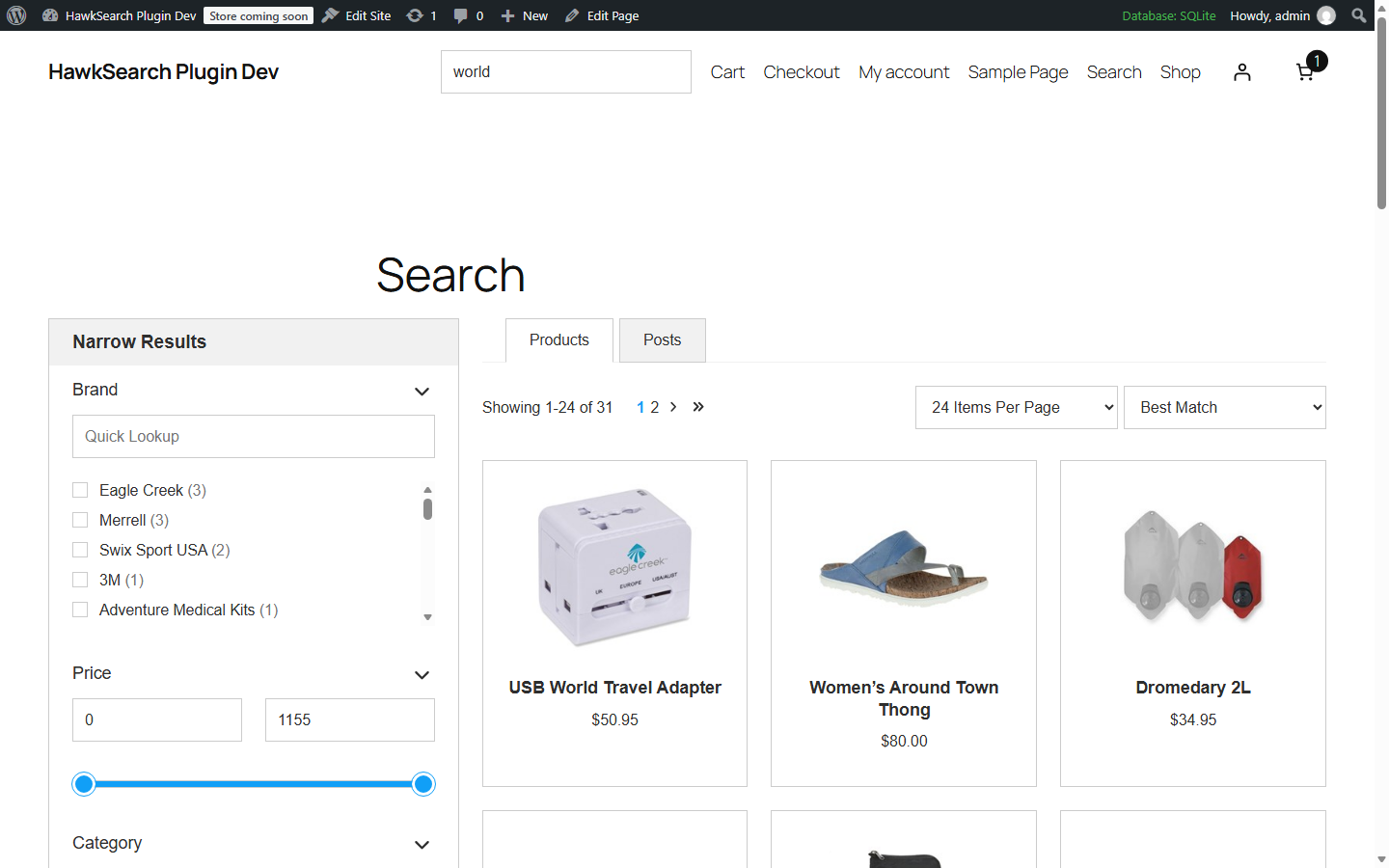
The tabs come from the Tab facet that the plugin creates automatically. Change the default tab or other tab settings in the Workbench (Data Configuration → Facets → Tab). Tab names come from WordPress's content type names; a developer can change them with the hawksearch_tab_value filter.
Recommendations
Recommendation widgets can appear:
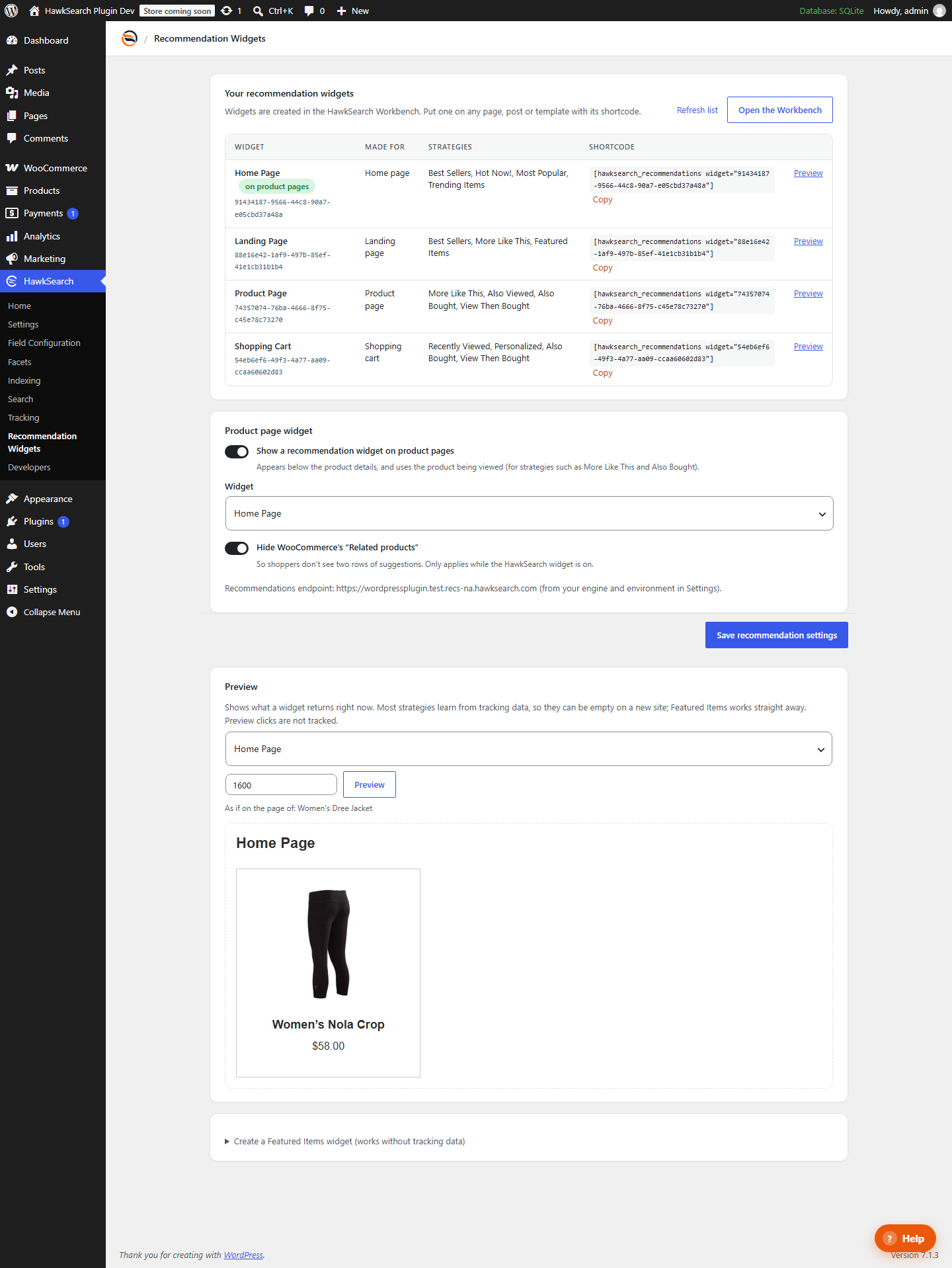
- On product pages, below the product details, when a product page widget is chosen on the Recommendation Widgets page.
- Anywhere else, using the widget's shortcode in a Shortcode block, for example on the home page or in a sidebar.
Standard Template Changes
- Styles: Rapid UI comes with default styles. Change colours, fonts and spacing with CSS in your theme (Appearance → Editor → Styles → Additional CSS, or your theme's stylesheet), or pass styles through the
hawksearch_rapid_ui_configfilter. - Markup: every Rapid UI component has a Handlebars template that can be replaced. See Developer Reference.
- Page layout: the results page and the product page widget use your theme's wide layout. Edit the Search page in the block editor to add headings, text or other blocks around the results.
Updated 1 day ago