

For Custom Engines
Overview
At HawkSearch, being able to test our product under a variety of conditions is paramount in the development process. Luckily, QuickStart enables developers to create and customize their own HawkSearch sandboxes both quickly and easily. Here, you'll learn how to create your own custom engine from scratch and populate it with your own fields and facets.
Although there are many ways to work with HawkSearch, this Sandbox setup will leverage Postman. Don't worry if you're unfamiliar with Postman-- our video guide will walk you through the process.
When utilizing a custom engine, set up works a bit differently than the other two set-up options. Here, we'll walk you through building and utilizing your custom engine to create a sandbox tailored to your needs.
Create Your Engine
To get started with sandbox creation, please go to https://quickstart.hawksearch.com/.
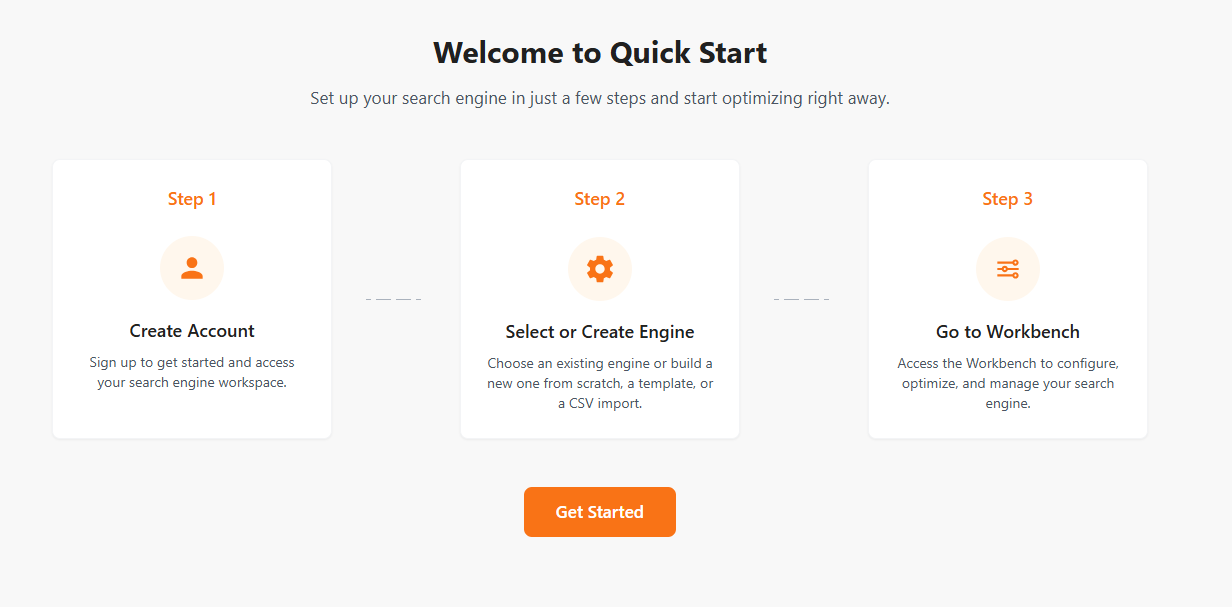
Upon loading, you should be greeted with the following screen. Select Get Started.
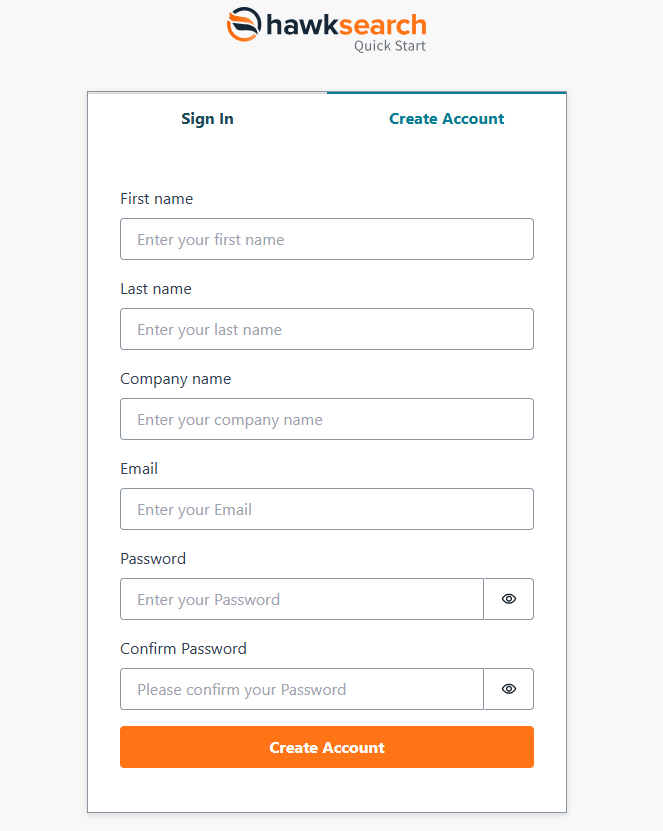
Create your account by inputting the required information.
After clicking Create Account, you should now arrive at the Engine Configuration page. Here, you'll input the name for your sandbox, with your contact name already provided as the email used to log in.
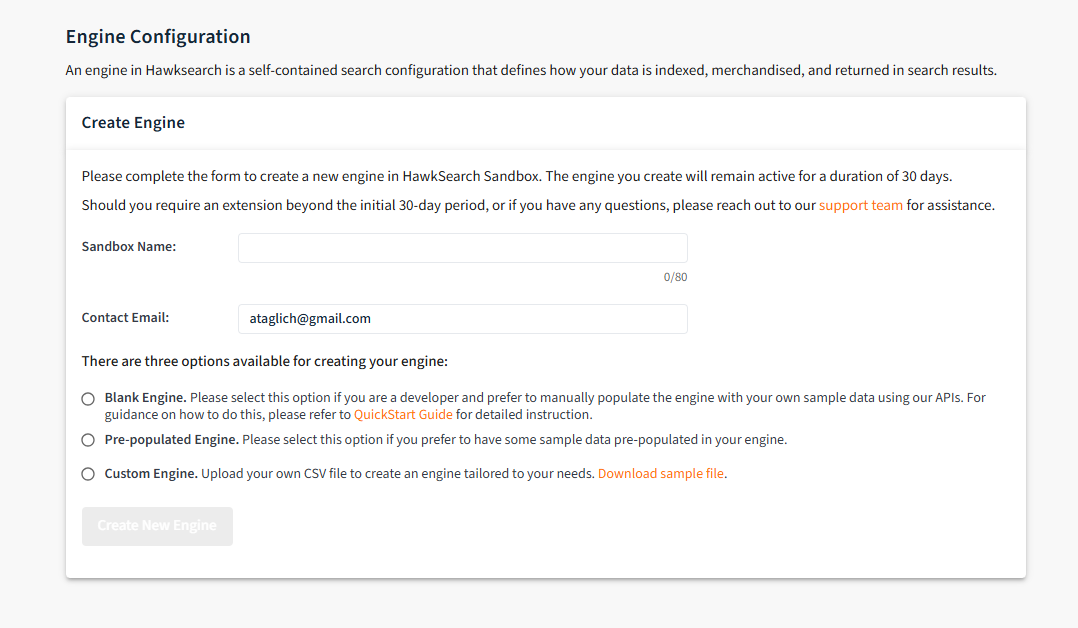
QuickStart's multiple engine options allow developers to create a sandbox with variable amounts of data already added. Since this is the guide for custom engines, we'll be selecting that.
Once the Create New Engine button has been clicked, you'll be given three more steps before your engine is created.
Upload CSV File
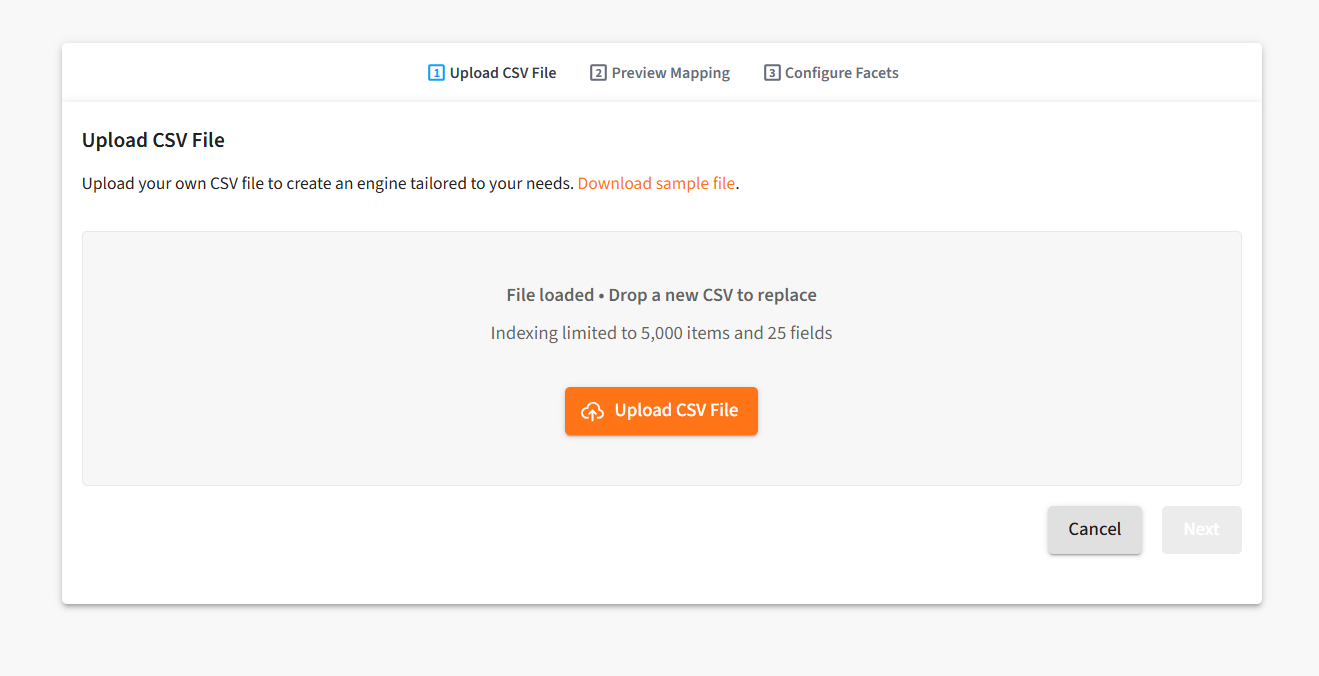
Custom engines have the unique ability to input pre-existing CSVs and automatically create an engine utilizing that data. Here, we've linked a sample file for quick and easy custom engine creation. This sample file is organized as follows:
| key | title | sku | description | image | brand | color | price | url | type | category |
|---|---|---|---|---|---|---|---|---|---|---|
If you're looking to create and customize your own CSV file, it might be wise to follow a similar structure.
Click Next once you've uploaded your CSV file.
Preview Mapping
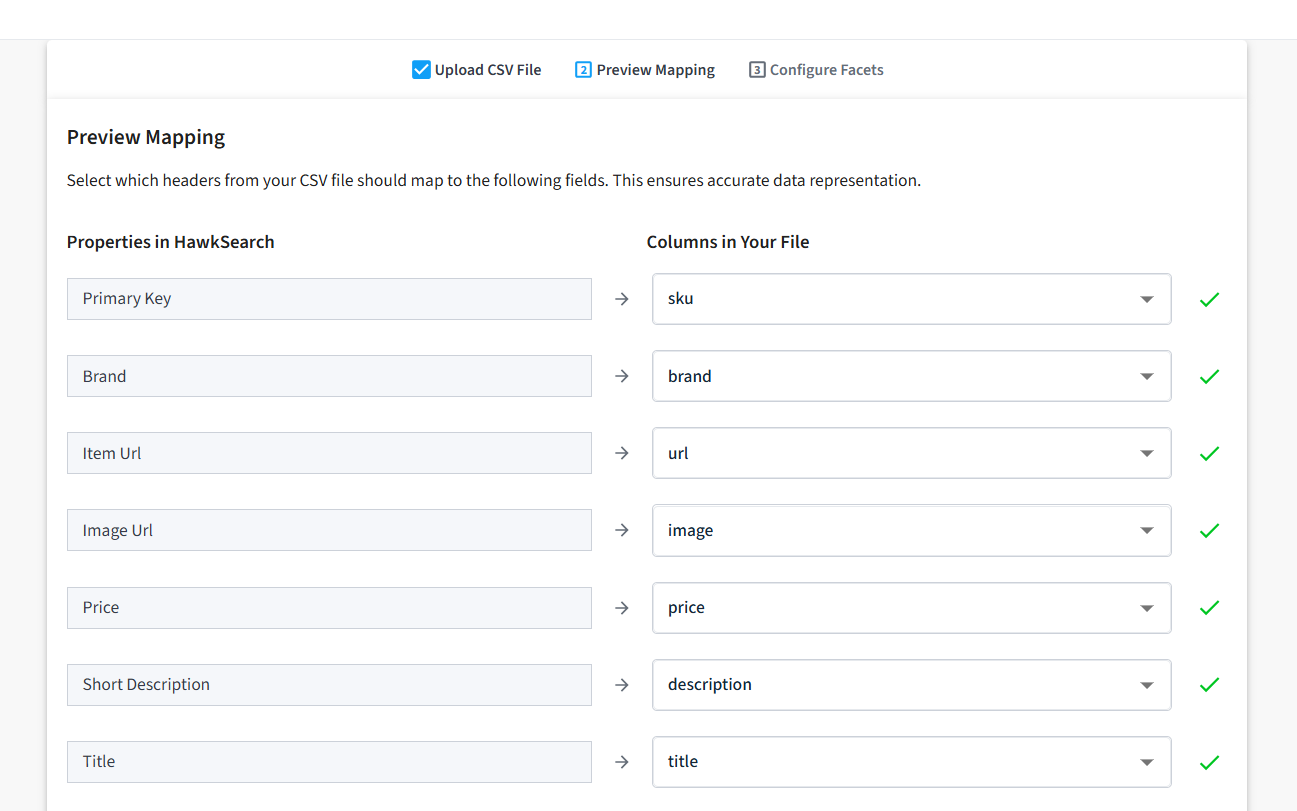
In the Preview Mapping section, the engine will automatically detect the headers on the uploaded CSV file and map them to certain properties built into HawkSearch. Edit these so the equivalent header in your CSV matches the correct property.
Configure Your Facets
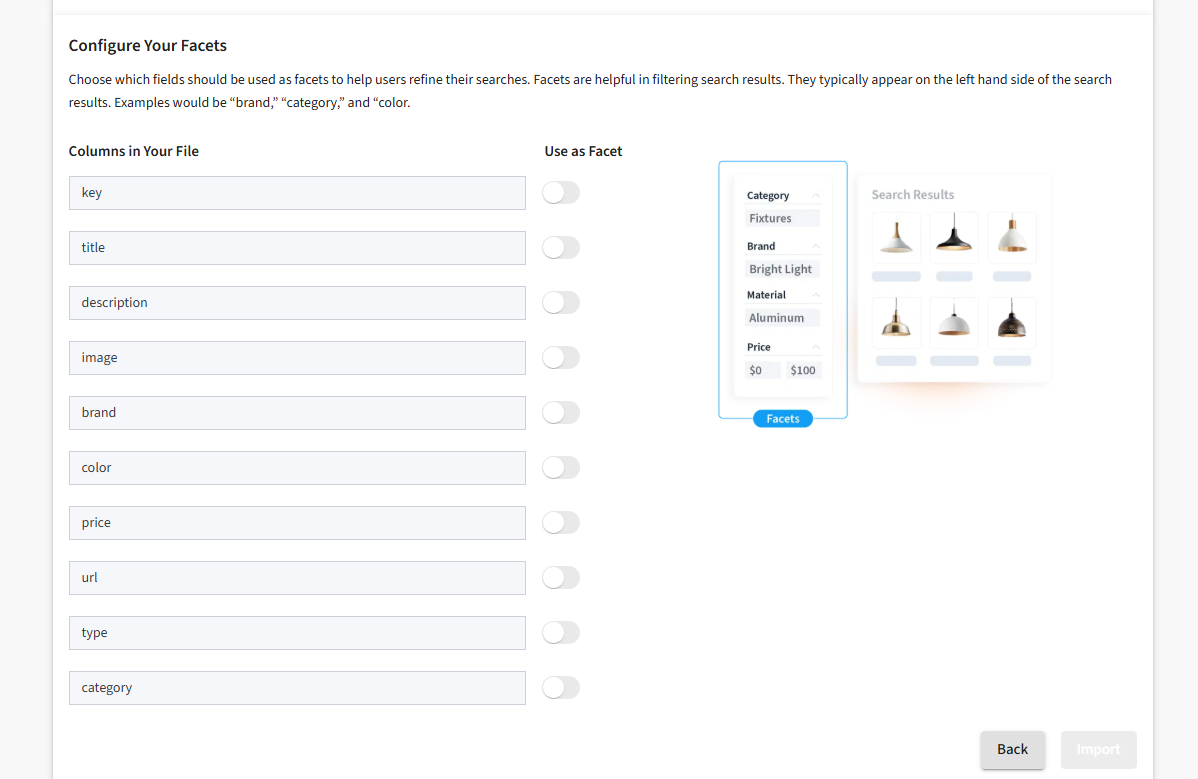
Finally, you'll be prompted to configure your facets. Facets are attributes inherit to a product that customers might want to filter or sort by-- things such as price, brand, or category. The toggle on the right will allow you to customize which facets you'd like the engine to create for you.
Once you click Import, you'll be met with the following screen:
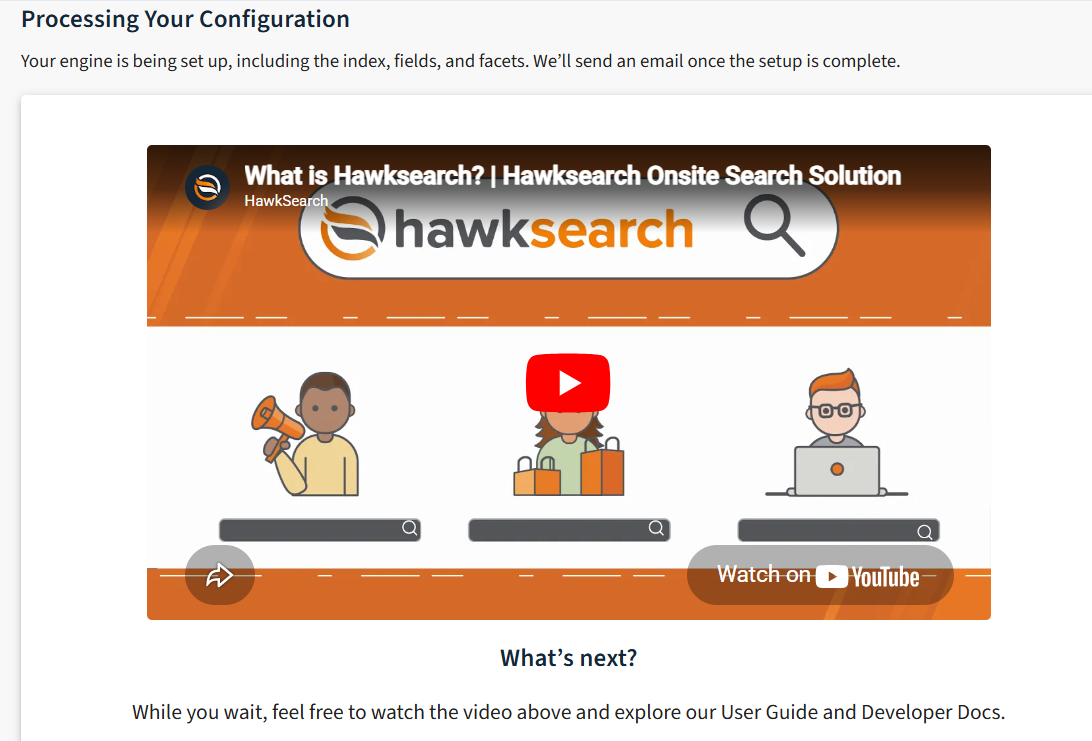
At this, you're done! Your engine is being automatically configured and set up with the supplied information, and information regarding credentials will be emailed once our system has created your engine\
If you do not receive an email, there might be an engine already associated with that email. In that instance, please contact our support team for further steps.
What's Next?
Congratulations! You've now created your engine. For more information, please check out the Sample Page or browse the files underneath Play In Your Sandbox.
Updated 4 months ago