

Hierarchical Navigation
Overview
It’s very common that the navigation for facets such as “Category” should support hierarchical navigation so that subcategories can be listed under categories. This can also be referred to as a “nested” category navigation.
Example
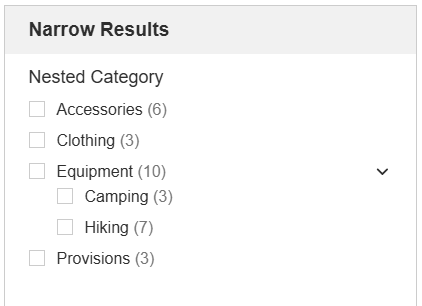
This is done through the Hierarchy API and can be accomplished by following these steps.
This documentation is assuming you have already gone through the QuickStart process with the QuickStart Outdoor Demo Data. If this is not the case, then follow the instructions for setting that up on the Developer Portal.
The API calls needed for this feature are included in this Postman collection. This collection is very similar to the Postman collection used in the standard QuickStart set up with the necessary changes to account for hierarchical fields. Once you have this new collection of API calls downloaded, please import it as a new collection in Postman to avoid any confusion with the non-hierarchical QuickStart collection.https://hawksearch-sales.demos.hawksearch.com/sales/quickstart-sandbox/HawkSearch_Hierarchy_QuickStart_Collection_Test.postman_collection.json
Hierarchy Field
The first step in being able to leverage hierarchical field data is to let HawkSearch know that you have data in this format. For this QuickStart process we will be using the Category field as an example, and since we already have a Category field created from the original setup of the QuickStart data, we can easily duplicate this field using the Field Copy function from the Fields Administration screen.
You can do this by logging into the HawkSearch account and navigating to Workbench -> Data Management -> Fields. From here, locate your existing Category field and then click on the icon indicated in the screenshot below. This will create a copy of the field for “category.”

In this new field, you want to first update the name and label of the field to something that clearly separates the hierarchical from the existing category. As an example, we picked "Nested Category". Second, you want to toggle on the “Is Hierarchical Field?” option.
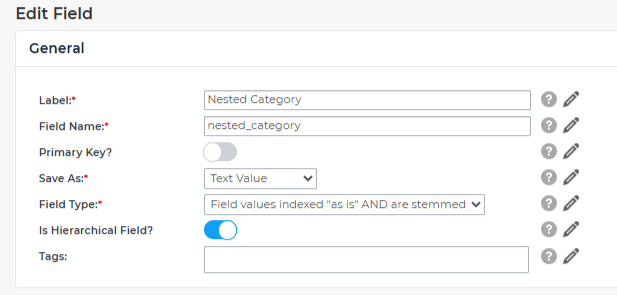
You can leave the other settings as-is. Scroll to the bottom of this screen, and click on the SAVE button to save your changes.
Hierarchy Facet
The next step is to create a new facet of type “Nested” and point it to your new field. Similar to how we duplicated the category field in the first step, we can duplicate the existing Category facet by logging into your HawkSearch account and navigating to Workbench -> Data Management -> Facets. From here, find your existing Category facet, and select the same icon as used in the first step to duplicate the facet.

Also similar to the first step, you will want to give this duplicated facet it's own unique name. Again, in this example we are using "Nested Category". Once the name is updated, the next step is to selected one of the 'Nested' facet type options from the Facet Type drop down list. A Nested Link List will allow for user to make a single selection, where a Nested Checkbox will allow for multiple selections. For this example, we have selected the Nested Checkbox option in the Facet Type. Once the Facet Type is set, make sure the Associated Field is set to use the new "Nested Category" field that we setup in the first step.
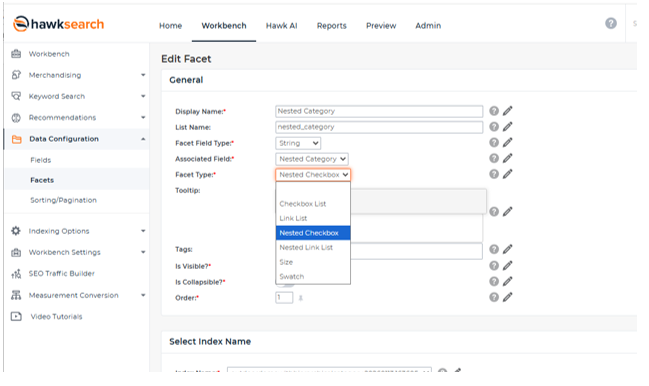
With the Nested Checkbox facet type set, and the Associated Field set to use our new hierarchical category field - you will then want to configure the Checkbox/Link List facet options to properly display the hierarchical children values. Scroll down the page till you see the Checkbox & Link List options and toggle on the follow two options:
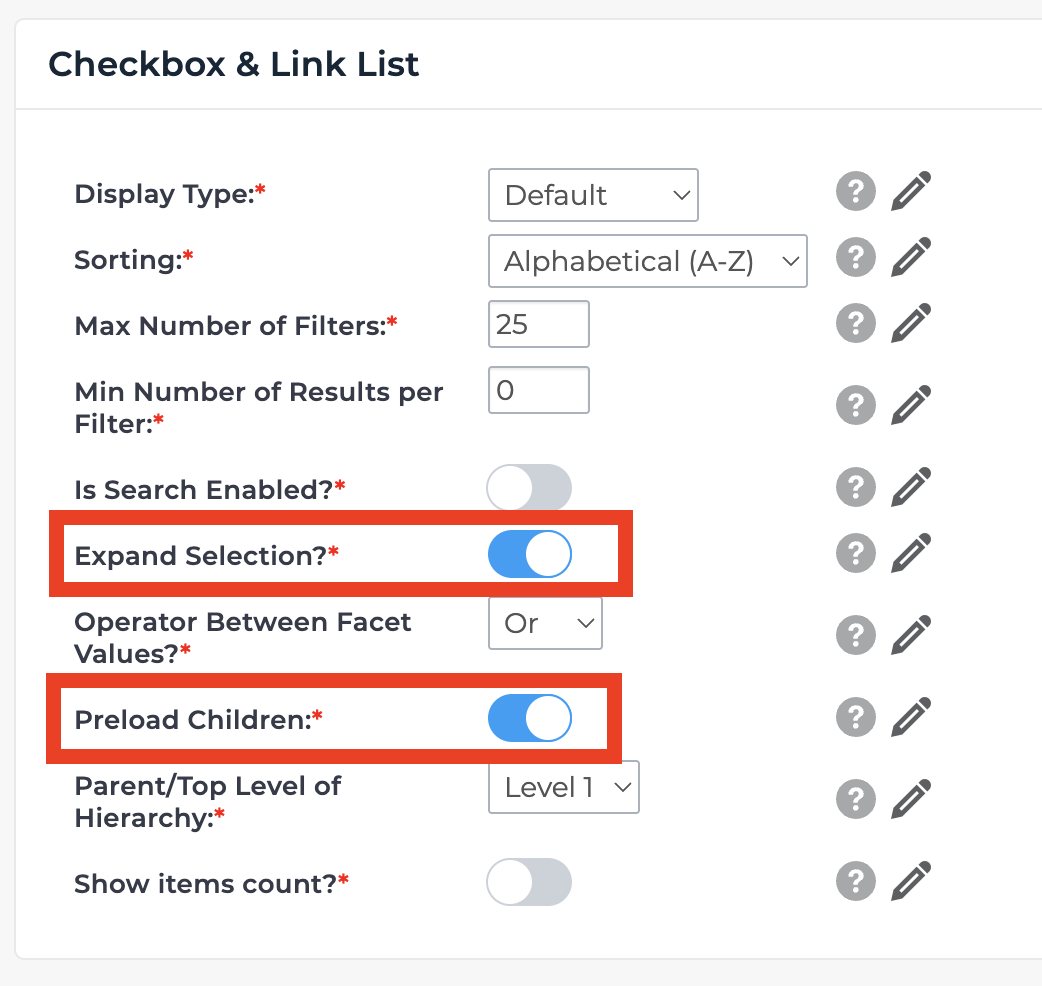
By toggling on Expand Selection, users will be still be able to see other facet options in the list after making a selection which is useful for facets with children as it lets you see "where" in the hierarchy you are after making a selection. Additionally, by turning on Preload Children, you can be see the full depth of the children values are visible at the top level and as user navigate.
Create a new Index
Since you have added these new fields, you will need to create a new index. Once again, use the Postman collection from the QuickStart guide to generate a new index with your new fields and facets. When using the QuickStart process you can only have two indexes created at once, so if you have created other indexes in the past, you may need to delete an older index first to be able to create a new one.
Hierarchy Data
Now that your new field and facet are in place and you have created a new index, you need to create your hierarchy data in your index. For the demo purposes, the navigation will look like this:
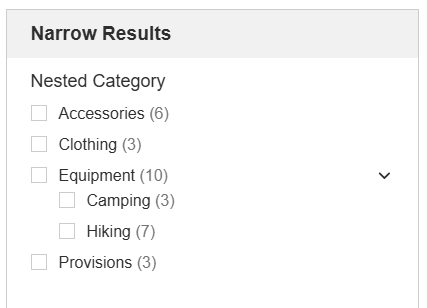
Which means the data will look like this:
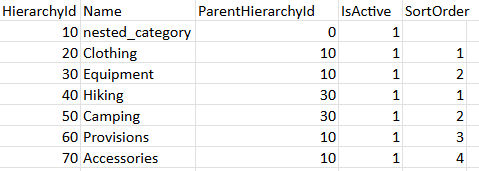
With this data structure we know that Hiking is a child of Equipment because the ParentHierachyId value for Hiking is set to 30, which is the HierachyId for the Equipment category. A full break down of the field names and their use is below.
| Field | Notes |
|---|---|
| HierarchyId | This can be any value you like – it serves as the identifier for the children nodes in the ParentHierarchyId |
| Name | The name of the value in the facet as it will appear on the website |
| ParentHierarchyId | The pointer to the parent from a child node |
| IsActive | Indicates if the value should be shown on the site |
| SortOrder | The order of the facets, but note that children sort order should also be considered |
Note that the first row needs to be the name of the field itself with the ParentHierarchyId set to 0.
You can download sample data that can be used with the Hierarchy QuickStart Postman collection from here: https://hawksearch-sales.demos.hawksearch.com/sales/quickstart-sandbox/nested_category_data.csv
You can run the “Hierarchy Data” request from the postman collection using the CSV above. This process is described in the initial QuickStart set up.
Data for indexing
Now that you have added the hierarchy structure to the index, you can index the product itself. The data in this CSV file is very similar to the data in the main QuickStart demo. The difference is the new field values for the Nested Category field.
Note
If you are using your own data feed, children items need to include both the child HierarchyId as well as the parent ID. For example, if a product lives in the Hiking child category you need to include the both "40" for the category Hiking,and "30", for the parent category Equipment, in the "nested_category" filed so that HawkSearch understands the full category path. If you only include the child level category the product will not be visible in parent level categories.
The data looks like this:
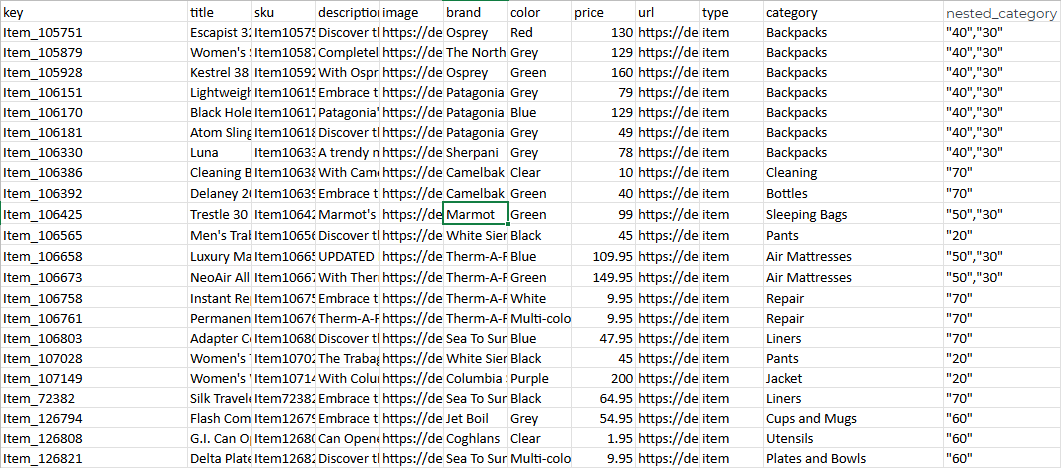
You can use this CSV to run the postman collection with “Bulk Product Creation” request in the Postman collection.
https://hawksearch-sales.demos.hawksearch.com/sales/quickstart-sandbox/dataforhierarchyindexing.csv
Rebuild Hierarchy
After your data is indexed, run the final command for rebuilding the hierarchy. It’s a simple endpoint in the postman collection. This lets HawkSearch understand the hierarchical values given in the indexing process and associates items to the defined categories.
Retrieve Hierarchy
If you would like to see the hierarchy in the index, you can use this endpoint. It’s included in the postman collection.
Set Current Index
With everything in place, it is best to set the new index that you created with the hierarchical category as the current index. You can use the 'Set Current Index' request in the Postman collection.
Updated 4 months ago